Version 2025-07 is the last API version to support React-based UI components. Later versions use Polaris web components, native UI elements with built-in accessibility, better performance, and consistent styling with Shopify's design system. Check out the upgrade guide to upgrade your extension and avoid being blocked from updating your extension after October 1st 2026.
Chat
Use the Chat component to create real-time chat applications.
Supported targets
- Checkout::Actions::Render
Before - Checkout::Cart
Line Details::Render After - Checkout::Cart
Lines::Render After - Checkout::Contact::Render
After - Checkout::Customer
Information::Render After - Checkout::Delivery
Address::Render Before - Checkout::Dynamic::Render
- Checkout::Pickup
Locations::Render After - Checkout::Pickup
Locations::Render Before - Checkout::Pickup
Points::Render After - Checkout::Pickup
Points::Render Before - Checkout::Reductions::Render
After - Checkout::Reductions::Render
Before - Checkout::Shipping
Method Details::Render After - Checkout::Shipping
Method Details::Render Expanded - Checkout::Shipping
Methods::Render After - Checkout::Shipping
Methods::Render Before - Checkout::Thank
You::Cart Line Details::Render After - Checkout::Thank
You::Cart Lines::Render After - Checkout::Thank
You::Customer Information::Render After - Checkout::Thank
You::Dynamic::Render - purchase.
checkout. actions. render-before - purchase.
checkout. block. render - purchase.
checkout. cart-line-item. render-after - purchase.
checkout. cart-line-list. render-after - purchase.
checkout. chat. render - purchase.
checkout. contact. render-after - purchase.
checkout. delivery-address. render-after - purchase.
checkout. delivery-address. render-before - purchase.
checkout. footer. render-after - purchase.
checkout. header. render-after - purchase.
checkout. payment-method-list. render-after - purchase.
checkout. payment-method-list. render-before - purchase.
checkout. pickup-location-list. render-after - purchase.
checkout. pickup-location-list. render-before - purchase.
checkout. pickup-location-option-item. render-after - purchase.
checkout. pickup-point-list. render-after - purchase.
checkout. pickup-point-list. render-before - purchase.
checkout. reductions. render-after - purchase.
checkout. reductions. render-before - purchase.
checkout. shipping-option-item. details. render - purchase.
checkout. shipping-option-item. render-after - purchase.
checkout. shipping-option-list. render-after - purchase.
checkout. shipping-option-list. render-before - purchase.
thank-you. announcement. render - purchase.
thank-you. block. render - purchase.
thank-you. cart-line-item. render-after - purchase.
thank-you. cart-line-list. render-after - purchase.
thank-you. chat. render - purchase.
thank-you. customer-information. render-after - purchase.
thank-you. footer. render-after - purchase.
thank-you. header. render-after
Supported targets
- Checkout::Actions::Render
Before - Checkout::Cart
Line Details::Render After - Checkout::Cart
Lines::Render After - Checkout::Contact::Render
After - Checkout::Customer
Information::Render After - Checkout::Delivery
Address::Render Before - Checkout::Dynamic::Render
- Checkout::Pickup
Locations::Render After - Checkout::Pickup
Locations::Render Before - Checkout::Pickup
Points::Render After - Checkout::Pickup
Points::Render Before - Checkout::Reductions::Render
After - Checkout::Reductions::Render
Before - Checkout::Shipping
Method Details::Render After - Checkout::Shipping
Method Details::Render Expanded - Checkout::Shipping
Methods::Render After - Checkout::Shipping
Methods::Render Before - Checkout::Thank
You::Cart Line Details::Render After - Checkout::Thank
You::Cart Lines::Render After - Checkout::Thank
You::Customer Information::Render After - Checkout::Thank
You::Dynamic::Render - purchase.
checkout. actions. render-before - purchase.
checkout. block. render - purchase.
checkout. cart-line-item. render-after - purchase.
checkout. cart-line-list. render-after - purchase.
checkout. chat. render - purchase.
checkout. contact. render-after - purchase.
checkout. delivery-address. render-after - purchase.
checkout. delivery-address. render-before - purchase.
checkout. footer. render-after - purchase.
checkout. header. render-after - purchase.
checkout. payment-method-list. render-after - purchase.
checkout. payment-method-list. render-before - purchase.
checkout. pickup-location-list. render-after - purchase.
checkout. pickup-location-list. render-before - purchase.
checkout. pickup-location-option-item. render-after - purchase.
checkout. pickup-point-list. render-after - purchase.
checkout. pickup-point-list. render-before - purchase.
checkout. reductions. render-after - purchase.
checkout. reductions. render-before - purchase.
checkout. shipping-option-item. details. render - purchase.
checkout. shipping-option-item. render-after - purchase.
checkout. shipping-option-list. render-after - purchase.
checkout. shipping-option-list. render-before - purchase.
thank-you. announcement. render - purchase.
thank-you. block. render - purchase.
thank-you. cart-line-item. render-after - purchase.
thank-you. cart-line-list. render-after - purchase.
thank-you. chat. render - purchase.
thank-you. customer-information. render-after - purchase.
thank-you. footer. render-after - purchase.
thank-you. header. render-after
Anchor to ChatPropsChat
Use the Chat component to create real-time chat applications. > Note: The Chat component can only be added to the chat targets of checkout and Thank you pages.
- Anchor to accessibilityLabelaccessibility
Labelaccessibility Label stringstring A label that describes the purpose or contents of the component. When set, it will be announced to users using assistive technologies and will provide them with more context.
- Anchor to blockSizeblock
Sizeblock Size numbernumber Adjust the block size.
Checkout imposes sizing restrictions for the component, therefore the size set may not be the actual size rendered.
number: size in pixels.Learn more about block size on MDN.
- Anchor to idididstringstring
A unique identifier for the component.
- Anchor to inlineSizeinline
Sizeinline Size numbernumber Adjust the inline size.
Checkout imposes sizing restrictions for the component, therefore the size set may not be the actual size rendered.
number: size in pixels.Learn more about inline size on MDN.
- Anchor to onMessageon
Messageon Message (event: MessageEvent) => void(event: MessageEvent) => void Callback when the embedded page sends a message.
- Anchor to onReadyon
Readyon Ready (event: ReadyEvent) => void(event: ReadyEvent) => void Callback when the embedded page is ready and a message port has been created to communicate with the host page.
MessageEvent
- data
The data sent by the message emitter (the embedded page). Learn more about [MessageEvent data on MDN](https://developer.mozilla.org/en-US/docs/Web/API/MessageEvent/data).
any - origin
A string representing the origin of the message emitter (the embedded page). Learn more about [MessageEvent origin on MDN](https://developer.mozilla.org/en-US/docs/Web/API/MessageEvent/origin).
string
ReadyEvent
- postMessage
A function to send messages to the embedded page. Learn more about [postMessage on MDN](https://developer.mozilla.org/en-US/docs/Web/API/MessagePort/postMessage).
(message: any) => void
Anchor to App Bridge for checkoutApp Bridge for checkout
The App Bridge script for checkout provides APIs that enables a secure communication channel between the Shopify checkout and the embedded application within the Chat iframe. It also offers convenient methods to perform common actions like resizing the iframe from within the application.
After App Bridge is set up in your app, you have access to the shopify global variable. This variable exposes the following App Bridge functionalities and configuration information:
The App Bridge script for checkout provides APIs that enable a secure communication channel between the Shopify checkout and the embedded application within the Chat iframe.
- Anchor to configconfigconfigConfigConfig
The static configuration values that will not change during runtime.
- Anchor to extensionextensionextensionExtensionExtension
The references and APIs to the UI extension that helped bootstrap the iframe.
- Anchor to idTokenid
Tokenid Token () => Promise<string>() => Promise<string> The ID token providing a set of claims as a signed JSON Web Token (JWT) with a TTL of 5 minutes. It can be used to ensure that requests came from a Shopify authenticated user. See the ID Token documentation for more information.
- Anchor to platformplatformplatform'browser' | 'shop-app' | 'pos''browser' | 'shop-app' | 'pos'
The platform or application that the app is embedded within.
- Anchor to surfacesurfacesurface'checkout''checkout'
The Shopify surface that the app is embedded within.
- Anchor to visitorvisitorvisitor() => Promise<Visitor>() => Promise<Visitor>
Information about the current visitor.
Config
- locale
The locale of the shop that’s embedding the app.
string
Extension
The meta information about an extension target.
- apiVersion
The API version that was set in the extension config file.
ApiVersion - capabilities
The allowed capabilities of the extension, defined in your [shopify.extension.toml](/docs/api/checkout-ui-extensions/configuration) file. * [`api_access`](/docs/api/checkout-ui-extensions/configuration#api-access): the extension can access the Storefront API. * [`network_access`](/docs/api/checkout-ui-extensions/configuration#network-access): the extension can make external network calls. * [`block_progress`](/docs/api/checkout-ui-extensions/configuration#block-progress): the extension can block a customer's progress and the merchant has allowed this blocking behavior. * [`collect_buyer_consent.sms_marketing`](/docs/api/checkout-ui-extensions/configuration#collect-buyer-consent): the extension can collect customer consent for SMS marketing. * [`collect_buyer_consent.customer_privacy`](/docs/api/checkout-ui-extensions/configuration#collect-buyer-consent): the extension can register customer consent decisions that will be honored on Shopify-managed services. * [`iframe.sources`](/docs/api/checkout-ui-extensions/configuration#iframe): the extension can embed an external URL in an iframe.
StatefulRemoteSubscribable<Capability[]> - editor
Information about the editor where the extension is being rendered. If the value is undefined, then the extension is not running in an editor.
Editor - rendered
A Boolean to show whether your extension is currently rendered to the screen. Shopify might render your extension before it's visible in the UI, typically to pre-render extensions that will appear on a later step of the checkout. Your extension might also continue to run after the customer has navigated away from where it was rendered. The extension continues running so that your extension is immediately available to render if the customer navigates back.
StatefulRemoteSubscribable<boolean> - scriptUrl
The URL to the script that started the extension target.
string - target
The identifier that specifies where in Shopify’s UI your code is being injected. This will be one of the targets you have included in your extension’s configuration file.
Target - version
The published version of the running extension target. For unpublished extensions, the value is `undefined`.
string
ApiVersion
The supported GraphQL Admin API versions. Use this to specify which API version your GraphQL queries should execute against. Each version includes specific features, bug fixes, and breaking changes. The `unstable` version provides access to the latest features, and can change without notice because it's not subject to versioning guarantees.
'2023-04' | '2023-07' | '2023-10' | '2024-01' | '2024-04' | '2024-07' | '2024-10' | '2025-01' | '2025-04' | 'unstable'Capability
The capabilities an extension has access to. * `api_access`: The extension can access the Storefront API. * `network_access`: The extension can make external network calls. * `block_progress`: The extension can block a buyer's progress and the merchant has allowed this blocking behavior. * `collect_buyer_consent.sms_marketing`: The extension can collect buyer consent for SMS marketing. * `collect_buyer_consent.customer_privacy`: The extension can register buyer consent decisions that will be honored on Shopify-managed services. * `iframe.sources`: The extension can embed an external URL in an iframe.
'api_access' | 'network_access' | 'block_progress' | 'collect_buyer_consent.sms_marketing' | 'collect_buyer_consent.customer_privacy' | 'iframe.sources'Editor
- type
Indicates whether the extension is rendering in the checkout editor.
'checkout'
Target
- selectedSuggestion
AddressAutocompleteSuggestion
AddressAutocompleteSuggestion
- formattedAddress
The address object used to auto-populate the remaining address fields. If this value is returned for every suggestion, then the `purchase.address-autocomplete.format-suggestion` extension target is not needed.
AutocompleteAddress - id
A textual identifier that uniquely identifies an autocomplete suggestion or address. This identifier may be used to search for a formatted address.
string - label
The address suggestion text presented to the buyer in the list of autocomplete suggestions. This text is shown to the buyer as-is. No attempts will be made to parse it.
string - matchedSubstrings
A list of substrings that matched the original search query. If `matchedSubstrings` are provided, then they will be used to highlight the substrings of the suggestions that matched the original search query.
MatchedSubstring[]
AutocompleteAddress
An address object used to auto-populate the address form fields. All fields are optional
- latitude
The latitude coordinates of the buyer. {% include /apps/checkout/privacy-icon.md %} Requires level 2 access to [protected customer data](/docs/apps/store/data-protection/protected-customer-data).
number - longitude
The longitude coordinates of the buyer. {% include /apps/checkout/privacy-icon.md %} Requires level 2 access to [protected customer data](/docs/apps/store/data-protection/protected-customer-data).
number
MatchedSubstring
- length
The length of the matched substring in the suggestion label text.
number - offset
The start location of the matched substring in the suggestion label text.
number
Visitor
- id
The unique token of a given user across all surfaces in a shop, present if processing permission is provided.
string
Anchor to ExamplesExamples
Anchor to Basic ChatBasic Chat
Basic Chat

Basic Chat
React
import {
  reactExtension,
  Chat,
} from '@shopify/ui-extensions-react/checkout';

export default reactExtension(
  'purchase.checkout.chat.render',
  () => <Extension />,
);

// This component requires the configuration of the `extensions.targeting.preloads.chat` in the extensions configuration file.
// Its value will be used as the `src` attribute of the Chat component.

function Extension() {
  return <Chat inlineSize={100} blockSize={50} />;
}
JS
import {extension, Chat} from '@shopify/ui-extensions/checkout';

// This component requires the configuration of the `extensions.targeting.preloads.chat` in the extensions configuration file.
// Its value will be used as the `src` attribute of the Chat component.

export default extension('purchase.checkout.chat.render', (root) => {
  const chat = root.createComponent(Chat, {
    inlineSize: 100,
    blockSize: 50,
  });

  root.appendChild(chat);
});
Anchor to Resize the Chat iframe from the hosted applicationResize the Chat iframe from the hosted application
A very common action in your application will be to request a resize of the iframe. This is done through the App Bridge resizeTo() method. The following example resizes the iframe following the click of an activator button to show a dialog window.
Resize the Chat iframe from the hosted application
UI Extension
import {reactExtension, Chat} from '@shopify/ui-extensions-react/checkout';

export default reactExtension('purchase.checkout.chat.render', () => (
  <Extension />
));

function Extension() {
  return <Chat inlineSize={150} blockSize={50} />;
}
Hosted chat application
<!doctype html>
<html lang="en">
  <head>
    <script src="https://cdn.shopify.com/shopifycloud/checkout-web/assets/app-bridge-checkout.js"></script>
    <style>
      .dialog {
        display: none;
      }
      .visible {
        display: block;
      }
    </style>
  </head>
  <body>
    <dialog class="dialog">
      How can we help you today?
      <button class="btn-close">Close</button>
    </dialog>
    <button class="btn-activator">Chat with us</button>

    <script type="text/javascript">
      const btnActivator = document.querySelector('.btn-activator');
      const btnClose = document.querySelector('.btn-close');
      const dialog = document.querySelector('.dialog');

      // bind actions to the buttons
      btnActivator.addEventListener('click', toggleDialog);
      btnClose.addEventListener('click', toggleDialog);

      function toggleDialog() {
        // if the dialog is visible,
        // -  hide the dialog
        // -  resize the iframe to the button's size
        if (dialog.classList.contains('visible')) {
          dialog.classList.remove('visible');
          shopify !== undefined && window.resizeTo(150, 50);

          // if the dialog is not visible,
          // - resize the iframe to the desired dialog's size
          // - then show the dialog
        } else {
          shopify !== undefined && window.resizeTo(415, 700);
          dialog.classList.add('visible');
        }
      }
    </script>
  </body>
</html>
Anchor to Communicate information between the hosted application and the UI extensionCommunicate information between the hosted application and the UI extension
Information can be passed between the hosted application and the UI extension through App Bridge. Extensions API are available in the UI extension and can be shared through that method.
Communicate information between the hosted application and the UI extension
UI Extension
import {
  reactExtension,
  useShippingAddress,
  Chat,
} from '@shopify/ui-extensions-react/checkout';
import {retain} from '@remote-ui/rpc';
import type {ReadyEvent} from '@shopify/ui-extensions-react/checkout';

export default reactExtension('purchase.checkout.chat.render', () => (
  <Extension />
));

function Extension() {
  /**
   * Use the `useShippingAddress` hook to access the first name of the buyer.
   */
  const {firstName} = useShippingAddress();

  /**
   * Define a variable to store the `postMessage` function
   * so we can re-use outside of the onReady callback later if needed.
   */
  let postMessage;

  return (
    <Chat
      inlineSize={150}
      blockSize={50}
      onReady={({postMessage: postMessageParam}: ReadyEvent) => {
        /**
         * Save the `postMessage` function to the variable defined earlier.
         */
        postMessage = postMessageParam;
        retain(postMessage);

        /**
         * When the communication channel is ready, send a message to the hosted application
         * using the `postMessage` provided as parameter.
         */
        postMessage({
          action: 'ping',
          buyer: {
            firstName,
          },
        });
      }}
      onMessage={(event: Event) => {
        /**
         * Listen for messages from the hosted application.
         * If the action is `pong`, the communication channel is successful.
         */
        if (event.data.action === 'pong') {
          console.log('Messaging channel successful');
        }
      }}
    />
  );
}
Hosted chat application
// Create a variable to store the buyer's first name.
// We'll be able to use this to personalize the chat experience.
let buyerFirstName;

// In the hosted application Javascript, listen for messages from the UI extension.
shopify.extension.port.onmessage = async (event) => {
  // if the message's data has a ping action, respond with a pong
  if (event.data.action === 'ping') {
    buyerFirstName = event.data.buyer.firstName;

    await shopify.extension.port.postMessage({
      action: 'pong',
    });
  }
};

// Ensure the messagePort is ready to start sending and receiving messages.
shopify.extension.port.start();
Anchor to Chat source and query parametersChat source and query parameters
The src of the iframe rendered by Chat is provided by the preloads chat key in the extension configuration file. Shopify automatically appends query parameters to the URL which allows developers to verify the authenticity of the request and the identity of the merchant. We guarantee these tokens are valid and signed by Shopify.
Anchor to id_tokenid_
The ID token providing a set of claims as a signed JSON Web Token (JWT) with a TTL of 5 minutes. It can be used to retrieve merchants information on the backend as well as ensure that requests came from a Shopify authenticated source. See the ID Token documentation for more information.
Anchor to localelocale
The locale of the shop that’s embedding the app, i.e. en-CA. This information is also available in the shopify global variable under config.
Anchor to handlehandle
The unique handle name of the UI extension as defined by the developer. This information is also available in the shopify global variable under extension.
Anchor to Chat dimensionsChat dimensions
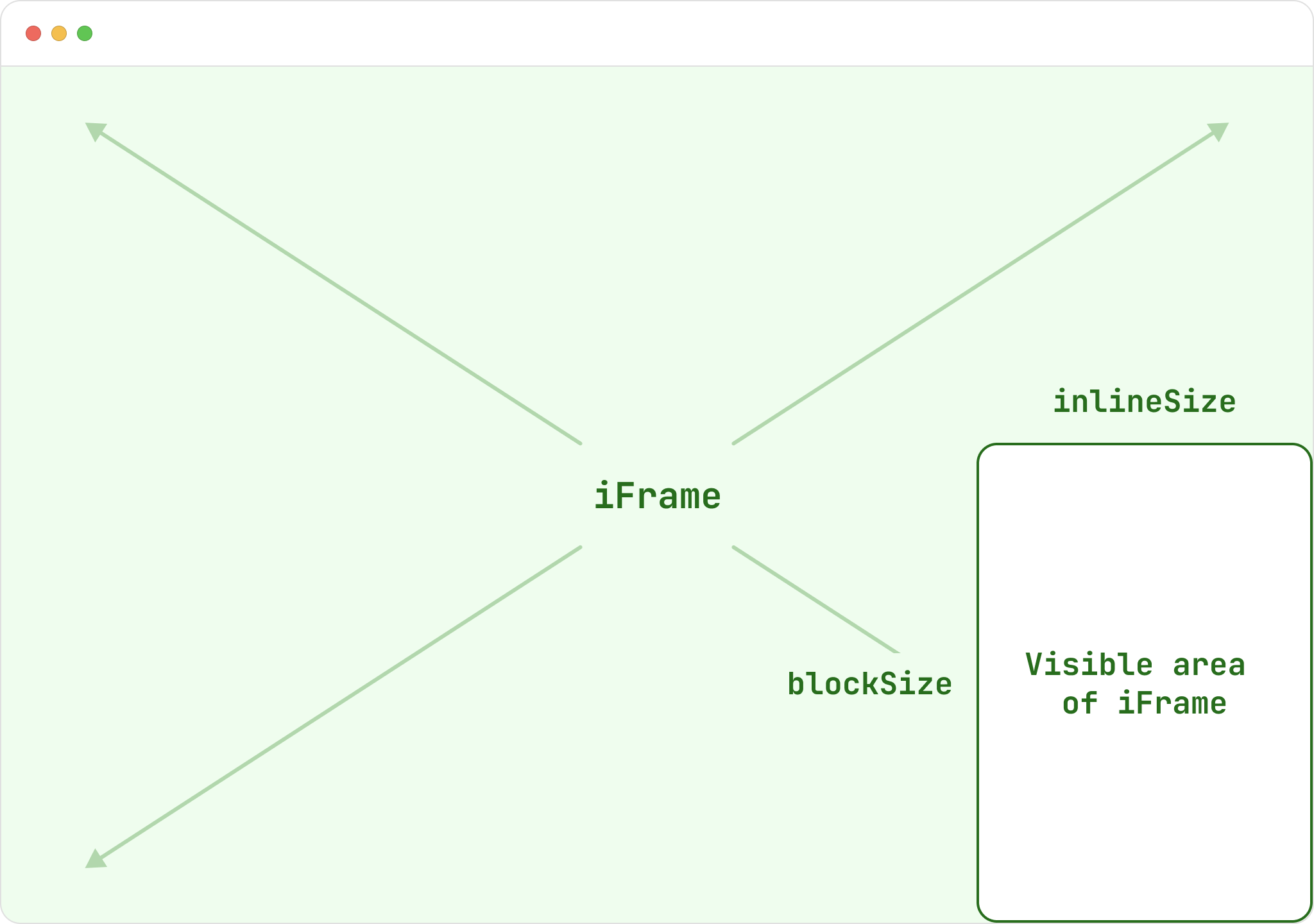
To provide developers with the most flexibility when it comes to responsive changes, the iframe rendered in the page by Chat takes the full width and height of the browser window. Only a specific part of the iframe is visible, the rest is clipped.
The inlineSize and blockSize values set on the Chat component or changed through the App Bridge resizeTo() method dictates the bounding box of the visible part. That box is fixed and positioned in the bottom right corner of the iframe.
Your application can rely on the window’s dimension to change styles or apply specific behaviors to different window sizes. This allow developers to style their app as if as if the application would be outside an iframe. For example, CSS media queries can now work within the iframe.
Anchor to Getting started with App Bridge for checkoutGetting started with App Bridge for checkout
You must add App Bridge to your hosted chat application by including the script tag pointing to the app-bridge-checkout.js as the first script in the <head> section as seen in the example. The script loads directly from Shopify and keeps itself up-to-date.
Anchor to App Bridge’s global variableApp Bridge’s global variable
After App Bridge is set up in your app, you have access to the shopify global variable. This variable exposes various App Bridge functionalities, such as resizing the iframe or retrieving details of the shop.
The reference above list all the available methods and properties.
Alternatively, to explore all the functionality available on the shopify global variable:
- Open the Chrome developer console while in checkout.
- Switch the frame context to your app's iframe.
- Enter
shopifyin the console.
Anchor to App Bridge’s CSS APIApp Bridge’s CSS API
Since the Chat iframe is clipped and fills the whole window as seen in the previous section, using percentage based sizes for its UI elements will most likely resolves in clipped content. As mentioned in the UX guidelines, Chat is constraint to specific maximum sizes on large and small screens set by Shopify. Setting a 100% width on an element will not be constraint to the visible size of the iframe, but to the whole window.
To remediate this issue, through App Bridge we offer a set of CSS custom properties with all the maximum dimensions defined in our UX guidelines. You can use these custom properties whether in Javascript or in the CSS of you application to set protections against overflowing content while using percentage based sizes. Using these properties will also reduce regressions if Shopify ever changes the maximum dimensions.