Build a custom credit card payments extension
This payment method is only available to be installed by Shopify Plus plans.
This payment method is only available to be installed by Shopify Plus plans.
Custom credit card payments extensions allow Partners to specify the hosted fields necessary to process their custom credit cards. You can collect essential information, such as installment details and required card numbers, directly on the checkout page before payment. This streamlines the checkout process and enhances the buyer experience.
Custom credit card payments extensions are used primarily to help merchants accept their Private Label Credit Card (PLCC) on Shopify Checkout.
Processing a payment with a custom credit card payments extension is currently in an invite-only closed beta.
All Partners must submit a valid Payment Card Industry (PCI) Attestation of Compliance (AOC) before access to custom credit card payment extension is granted. To submit an AOC, go to the Shopify Help Center, select Chat with us, log in, choose your Partner organization, and include your updated Attestation of Compliance in the support request.
Processing a payment with a custom credit card payments extension is currently in an invite-only closed beta.
All Partners must submit a valid Payment Card Industry (PCI) Attestation of Compliance (AOC) before access to custom credit card payment extension is granted. To submit an AOC, go to the Shopify Help Center, select Chat with us, log in, choose your Partner organization, and include your updated Attestation of Compliance in the support request.
Anchor to What you'll learnWhat you'll learn
This document builds upon the credit card payments extension tutorial, which you may refer to as needed for additional guidance.
This document builds upon the credit card payments extension tutorial, which you may refer to as needed for additional guidance.
In this tutorial, you'll learn how to do the following tasks:
- Create a checkout UI extension
- Create a custom credit card payments extension
- Explore the payment, refund, void, reject and capture session flows, and how to implement them yourself
Anchor to RequirementsRequirements
- Install Shopify CLI
- Create a Shopify Partner account and apply to become a payments partner
- Create a dev store
- Create an encryption certificate
Anchor to Step 1: Scaffold an appStep 1: Scaffold an app
To build a custom credit card payment extension you will need to create a new app, with a custom credit card payments extension and checkout UI extension correctly applied.
Create your new app using the Shopify CLI.
Ensure you have the latest version of Shopify CLI installed to access all payment extension features.
Ensure you have the latest version of Shopify CLI installed to access all payment extension features.
Anchor to Step 2: Create a checkout UI extensionStep 2: Create a checkout UI extension
After creating your app, generate a checkout UI extension and deploy your app to Shopify. This extension will be used to collect additional information that's required to process a payment.
-
Use the Shopify CLI to scaffold a checkout UI extension for your app.
-
Name your extension and choose to work in TypeScript Preact.
NoteA sample extension, written in Typescript Preact, is shown below in the Sample Checkout UI Extension section. Please make sure to use the target and APIs as shown in the example.
Note:A sample extension, written in Typescript Preact, is shown below in the Sample Checkout UI Extension section. Please make sure to use the target and APIs as shown in the example.
-
After you generate the extension, deploy your app. This will allow you to link the checkout UI extension with your payments app extension in the next section.
-
Navigate to your app in Shopify Partners (Apps > Your App).
Anchor to Step 3: Create a payments extensionStep 3: Create a payments extension
Your Shopify app becomes a payments app after you've created and configured your payments extension.
-
Run the following command to start generating your payments extension:
Terminal
shopify app generate extension -
When prompted for Type of extension, select Payments extensions > Credit Card and name your extension.
Anchor to Step 4: Configure your payments extensionStep 4: Configure your payments extension
Configuration of custom credit card payments extension is similar to a Credit Card payments extension.
Your payments extension configures the following fields:
| Property name | Description |
|---|---|
payment_session_url required | The URL that receives payment and order details from the checkout. |
refund_session_url required | The URL that refund session requests are sent to. |
capture_session_url required | The URL that capture session requests are sent to. |
void_session_url required | The URL that void session requests are sent to. |
confirmation_callback_url optional | The URL that confirm session requests are sent to. This URL is required if your payments app supports 3-D Secure authentication. |
supported_countries required | The countries where your payments app is available. Refer to the list of ISO 3166 (alpha-2) country codes where your app is available for installation by merchants. Ensure the countries match the geographic requirements in your app listing when submitting your app for review. |
supports_3ds required | 3-D Secure support is mandated in some instances. For example, you must enable the 3-D Secure field if you plan to support payments in countries which have mandated 3-D Secure. |
supported_payment_methods required | The payment methods (for example, Visa) that are available with your payments app. Learn more. |
supports_installments required | Enables installments |
supports_deferred_payments required | Enables deferred payments |
merchant_label required | The name for your payment provider extension. This name is displayed to merchants in the Shopify admin when they search for payment methods to add to their store. Limited to 50 characters. |
buyer_label optional | The name of the payment method. Your checkout name can be the same as your merchant admin name or it can be customized for customers. This name is displayed with the payment methods that you support in the customer checkout. After a checkout name has been set, translations should be provided for localization. |
test_mode_available required | Enables merchants using your payments app to test their setup by simulating transactions. To test your app on a dev store, your payment provider in the Shopify admin must be set to test mode. |
api_version required | The Payments Apps GraphQL API version used by the payment provider app to receive requests from Shopify. You must use the same API version for sending GraphQL requests. You can't use the unstable version of the API in production. API versions are updated in accordance with Shopify's general API versioning timelines. |
multiple_capture optional | Enables merchants using your payment provider app to partially capture an authorized payment multiple times up to the full authorization amount. This is used only if your payments app supports merchant manual capture. |
encryption_certificate_fingerprint required | The certificate that Shopify uses to generate the ephemeral key and encrypt the credit card information of the customer. Refer to manage encryption certificates section to learn more. |
ui_extension_handle required | The UI extension that renders your payments app in checkout. This value can only be a UI extension linked to this specific payments app. |
checkout_payment_method_fields required | The fields your payments app will accept from buyers in checkout (for example, installment details, payment plan). Each field is composed of a key name, and a data type. The data type defines the input that a buyer can provide. |
checkout_hosted_fields required | The hosted fields your payments app will accept from buyers in checkout (for example, cardholder name, expiration date). This should be an array of string. |
The ui_extension_handle, checkout_payment_method_fields and checkout_hosted_fields attributes are new app extension configurations. You'll want to select the UI extension you created in Create a Checkout UI Extension as the value for the UI Extension field.
The ui_extension_handle, checkout_payment_method_fields and checkout_hosted_fields attributes are new app extension configurations. You'll want to select the UI extension you created in Create a Checkout UI Extension as the value for the UI Extension field.
The UI extension generated in Create a checkout UI extension will determine what fields, validation, and form submission behavior is presented to buyers during checkout.
Anchor to UI ExtensionUI Extension
This is where you would identify the checkout extension you built prior to creating your payment app extension to tie them into one another.
| Property name | Description |
|---|---|
ui_extension_handle required | The UI extension that renders your payments app in checkout. This value can only be a UI extension linked to this specific payments app. |
Anchor to UI Extension Field DefinitionsUI Extension Field Definitions
The fields you are looking to accept from your UI extensions so the payment method can validate the correct data is sent from the front end.
| Property name | Description |
|---|---|
checkout_payment_method_fields required | The fields your payments app will accept from buyers in checkout (for example, installment details, payment plan). Each field is composed of a key name, and a data type. The data type defines the input that a buyer can provide. |
Example UI extension field definitions
Anchor to Credit Card FieldsCredit Card Fields
| Property name | Description |
|---|---|
checkout_hosted_fields required | The hosted fields your payments app will accept from buyers in checkout (for example, cardholder name, expiration date). This should be an array of string. |
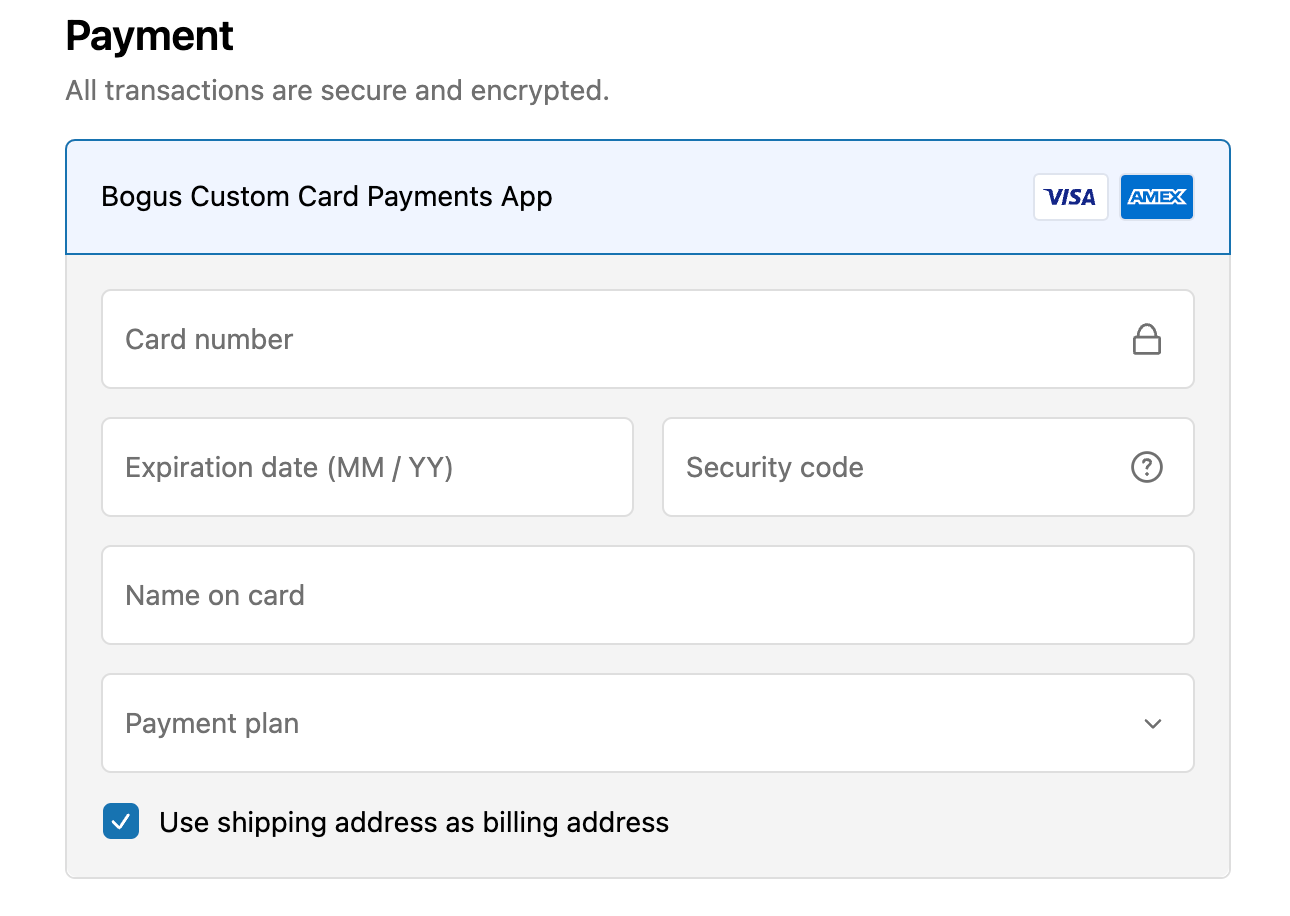
The example field definitions configure a checkout form that appears as follows:
Anchor to Step 5: Set up your payments appStep 5: Set up your payments app
Anchor to Update your app configurationUpdate your app configuration
Shopify apps are embedded by default, but payments apps are an exception to this, because they don't need to render anything in Shopify admin. In shopify.app.toml, update the embedded and set it to false.
The write_payment_gateways and write_payment_sessions access scopes are automatically granted through the payment extension. Omit them from your shopify.app.toml file on initial deployment. In later deployments, you can add these scopes to request merchant permission for your payment extension.
Anchor to Step 6: Deploy your extensionStep 6: Deploy your extension
The write_payment_gateways and write_payment_sessions scopes are automatically granted to your app through the payment extension. Therefore, on initial deployment of your app, you should omit the scopes from your shopify.app.toml file.
However, you can include these scopes in later deployments, if you intend to use the scopes within the shopify.app.toml file to request permission from merchants to install your payment extension.
The write_payment_gateways and write_payment_sessions scopes are automatically granted to your app through the payment extension. Therefore, on initial deployment of your app, you should omit the scopes from your shopify.app.toml file.
However, you can include these scopes in later deployments, if you intend to use the scopes within the shopify.app.toml file to request permission from merchants to install your payment extension.
Create and release an app version with the deploy command.
- Navigate to your app directory.
- Run the following command.
Terminal
An app version created using Shopify CLI contains the following:
-
The app configuration from the local configuration file.
-
The local version of the app's extensions. If you have an extension in your deployed app, but the extension code doesn't exist locally, then the extension isn't included in your app version.
Releasing an app version replaces the current active version that's served to stores with your app installed. It might take several minutes for app users to be upgraded to the new version.
If you want to create a version, but want to avoid releasing it to users, then run the deploy command with a --no-release flag.
You can release the unreleased app version using Shopify CLI's release command, or through the Dev Dashboard.
If you want to create a version, but want to avoid releasing it to users, then run the deploy command with a --no-release flag.
You can release the unreleased app version using Shopify CLI's release command, or through the Dev Dashboard.
Anchor to Step 7: Start your development serverStep 7: Start your development server
-
Start
app devif it's not already running:Terminal
shopify app devIn your terminal, select your dev store. You can use the generated URL to test your payments app by using it in your payments app configuration. If you want a consistent tunnel URL, then you can use the
--tunnel-urlflag with your own tunnel when starting your server. -
Press
pto open the app in your browser. This brings you to your development store's admin.
Anchor to Step 8: Test your payments app with a storeStep 8: Test your payments app with a store
Once this version has been released, follow these steps to install your app on your dev store:
-
From the app splash page, enter an account name.
-
Select Ready < Unstable and click Submit.
You need to set your app as ready to process payments by calling the paymentsAppConfigure mutation.
POST https://{shop_domain}/payments_apps/api/{api_version}/graphql.json
Mutation
There are two required arguments that you need to provide in the mutation:
externalHandle: A account name or identifier associated with the account that the merchant has used with the Partner.ready: A signal that the provider is ready to process payments. Accepted values aretrueorfalse.true: Allows your app to process payments.false: Indicates your app isn't yet able to process payments.
If you set ready: false after the app is installed and activated on the store, the request will fail.
If you set ready: false after the app is installed and activated on the store, the request will fail.
-
In the banner, click Return to Shopify.
After calling the mutation, you must configure your app to redirect back to the Shopify admin using the following URL:
https://{shop}.myshopify.com/services/payments_partners/gateways/${api_key}/settings -
Enable test mode.
-
Click Activate.
Anchor to Explore the payment processing flowsExplore the payment processing flows
The Payments App functions similarly to the Credit Card payment method, allowing you to gather additional information from the buyer at the outset to facilitate payment processing. The primary distinction is that checkout UI extension data is included in the start_payment_session body.
Outlined below is a comprehensive diagram depicting the potential flow for processing a custom credit card payment. It's important to note that the pending state is optional; you can directly proceed to either resolve or reject the payment if there is no need to place it in a pending state. For further details on processing credit card payments, please refer to this resource.
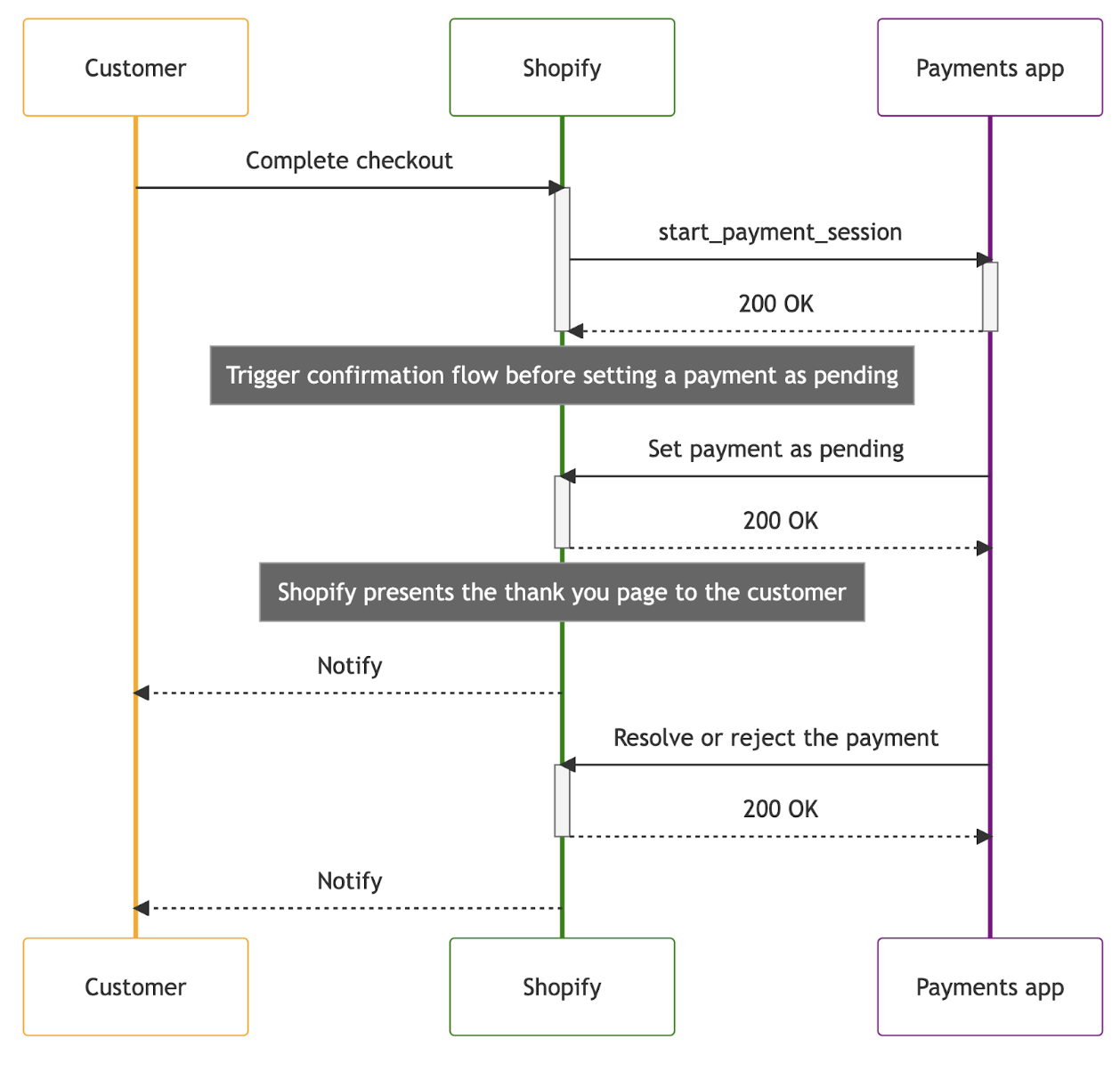
Once we start the payment session with your payments app, that initiation will also contain the metadata in a shape similar to what was specified within the field definitions. A sample payment session payload of what is to be expected can be seen below.
Anchor to Payment sessionPayment session
Payments with payments apps are processed asynchronously. When the buyer completes their checkout, a request will be sent from Shopify to the Payment session URL defined in Configure your payments app extension, with the checkout and payment details. The Payments app should respond with HTTP 2xx to indicate that the payment session was started, and should begin processing the custom credit card payment at this point.
The new metadata we are passing through payment session would be contained within the payment_method request params under attributes:
Example payment method request parameters
Start session
Request header
Request body
Response body
Anchor to ResolveResolve
Once the payments app has responded to the initial start payment session request, it should begin processing the payment. Since this is an asynchronous process, the payments app will be performing the next step independently, through the paymentSessionResolve mutation on the Payments Apps GraphQL API. This mutation will resolve the payment session, indicating that the payment was successful.
Example GraphQL mutation:
POST https://{shop}.myshopify.com/payments_apps/api/unstable/graphql.json
Mutation
Input variables
JSON response
After this, the payment will be marked as resolved in Shopify.
Anchor to RejectReject
If a payment was unsuccessful for any reason, the payments app must use the paymentSessionReject mutation.
POST https://{shop}.myshopify.com/payments_apps/api/unstable/graphql.json
Mutation
Input variables
JSON response
Anchor to ErrorError
These are the reasons you can reject a payment session with.
Anchor to Refund SessionRefund Session
The refund flow begins with an HTTP POST request sent from Shopify to the payments app's refund session URL. Shopify must receive an HTTP 201 (Created) response for the refund session creation to be successful. You can read more about refund sessions and how to reject or resolve refund sessions here.
Example request body:
Example request body
Anchor to ResolveResolve
After the app successfully processes the refund request, the refundSessionResolve mutation automatically resolves the refund. The id argument corresponds to the gid of the refund.
Example GraphQL mutation:
POST https://{shop}.myshopify.com/payments_apps/api/unstable/graphql.json
Mutation
Input variables
JSON response
After this, the refund will be marked as resolved in Shopify.
Anchor to RejectReject
If the app can't process a refund, then it needs to reject it. You should only reject a refund in the case of final and irrecoverable errors. Otherwise, you can attempt to process the refund again.
The refund is rejected using the refundSessionReject mutation.
As part of the rejection, a reason why the refund was rejected must be included as part of RefundSessionRejectionReasonInput.
Example GraphQL mutation:
POST https://{shop}.myshopify.com/payments_apps/api/unstable/graphql.json
Mutation
Input variables
JSON response
Anchor to Capture SessionCapture Session
A capture can only be performed when the payment initiated by Shopify has a kind property with a value of authorization. With an authorization, the app places a hold on funds and then replies to Shopify's capture request.
The capture flow begins with an HTTP POST request sent from Shopify to the payments app's capture session URL. You can read more about capture sessions and how to reject or resolve capture sessions here.
Example request body:
Example request body
Anchor to ResolveResolve
After the app successfully processes the capture request, the captureSessionResolve mutation automatically resolves the capture. The id argument corresponds to the gid of the capture.
Example GraphQL mutation:
POST https://{shop}.myshopify.com/payments_apps/api/unstable/graphql.json
Mutation
Input variables
JSON response
After this, the capture will be marked as resolved in Shopify.
Anchor to RejectReject
If you don't want to process a capture request, then you should reject it. You might want to reject a capture if authorization has expired or if you suspect that the request is fraudulent or high risk. You should only reject a capture in the case of final and irrecoverable errors. Otherwise, you should re-attempt to resolve the capture.
The app rejects a capture using the captureSessionReject mutation.
As part of the rejection, you need to include a reason why the capture was rejected as part of CaptureSessionRejectionReasonInput.
Example GraphQL mutation:
POST https://{shop}.myshopify.com/payments_apps/api/unstable/graphql.json
Mutation
Input variables
JSON response
Anchor to Void SessionVoid Session
A void can only be performed when the payment initiated by Shopify has a kind property with a value of authorization.
The void flow begins with an HTTP POST request sent from Shopify to the payments app's void session URL. You can read more about void sessions and how to reject or resolve void sessions here.
Example request body:
Example request body
Anchor to ResolveResolve
After the app successfully processes the void request, the voidSessionResolve mutation automatically resolves the void. The id argument corresponds to the gid of the void.
Example GraphQL mutation:
POST https://{shop}.myshopify.com/payments_apps/api/unstable/graphql.json
Mutation
Input variables
JSON response
After this, the void will be marked as resolved in Shopify.
Anchor to RejectReject
If your app can't process a void request, then you should reject it. You should only reject a void in the case of final and irrecoverable errors. Otherwise, you can attempt to resolve the void again.
You can reject a void using the voidSessionReject mutation. As part of the rejection, you need to include a reason why the void was rejected as part of VoidSessionRejectionReasonInput.
Example GraphQL mutation:
POST https://{shop}.myshopify.com/payments_apps/api/unstable/graphql.json
Mutation
Input variables
JSON response
Anchor to Sample Checkout UI ExtensionSample Checkout UI Extension
Update to the latest version of checkout UI extensions so you can use web components. The legacy checkout-ui-extensions-react package is no longer required.
Update to the latest version of checkout UI extensions so you can use web components. The legacy checkout-ui-extensions-react package is no longer required.
The following example demonstrates a checkout UI extension for a custom credit card payments app. It uses hooks, such as useApplyPaymentMethodAttributesChange and usePaymentMethodAttributeValues from the Preact-specific package.
extensions/<extension-name>/src/Checkout.jsx
You must specify the target you're rendering to (purchase.checkout.payment-option-item.hosted-fields.render-after) in the shopify.extension.toml file in your extension directory.
You must specify the target you're rendering to (purchase.checkout.payment-option-item.hosted-fields.render-after) in the shopify.extension.toml file in your extension directory.
Anchor to Frequently asked questionsFrequently asked questions
-
Does the custom credit card extension accommodate split payments or installments?
Custom credit card extension provides partners with the flexibility to include a field in the extension, showcasing various payment options to buyers. However, it's important to note that Shopify processes these as a single, full payment to the processor. Any arrangements for payment schedules or installments are then managed directly between the processor and the buyer, without Shopify's involvement.
Anchor to Tutorial complete!Tutorial complete!
Congratulations! You set up a custom credit card payments app.