Migrate from the Partner Dashboard
The Dev Dashboard is where you build on Shopify and run your Partner business. You create and monitor apps, work in your stores, see what you've earned, and manage your organization and team.
Use this page to find where each Partner Dashboard tool is now, and which ones haven't moved yet.
Anchor to Why it changedWhy it changed
The Dev Dashboard brings the Partner and developer experience together:
- One place to build and run your business: Your apps, stores, payouts, billing, and settings share one navigation.
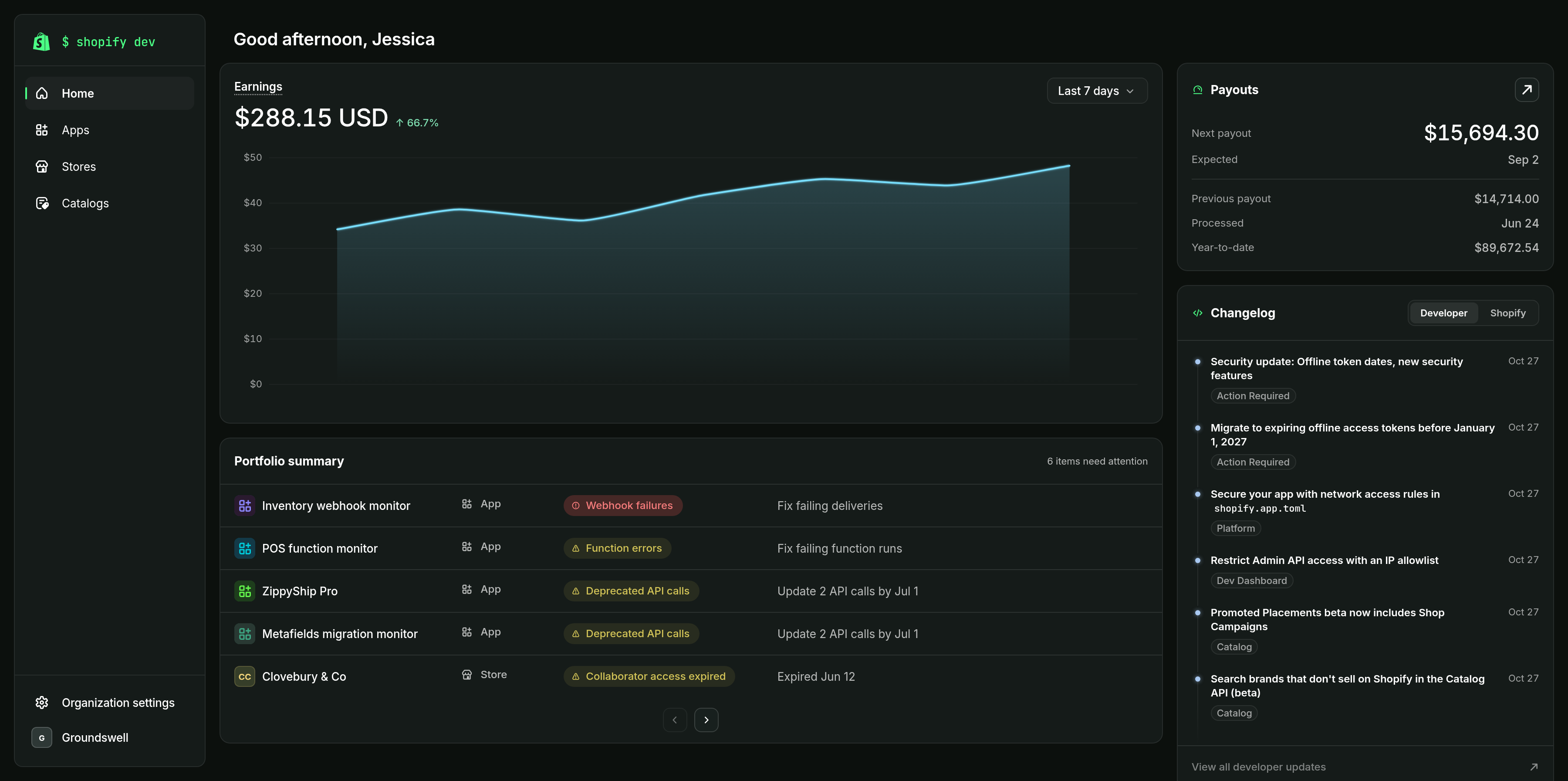
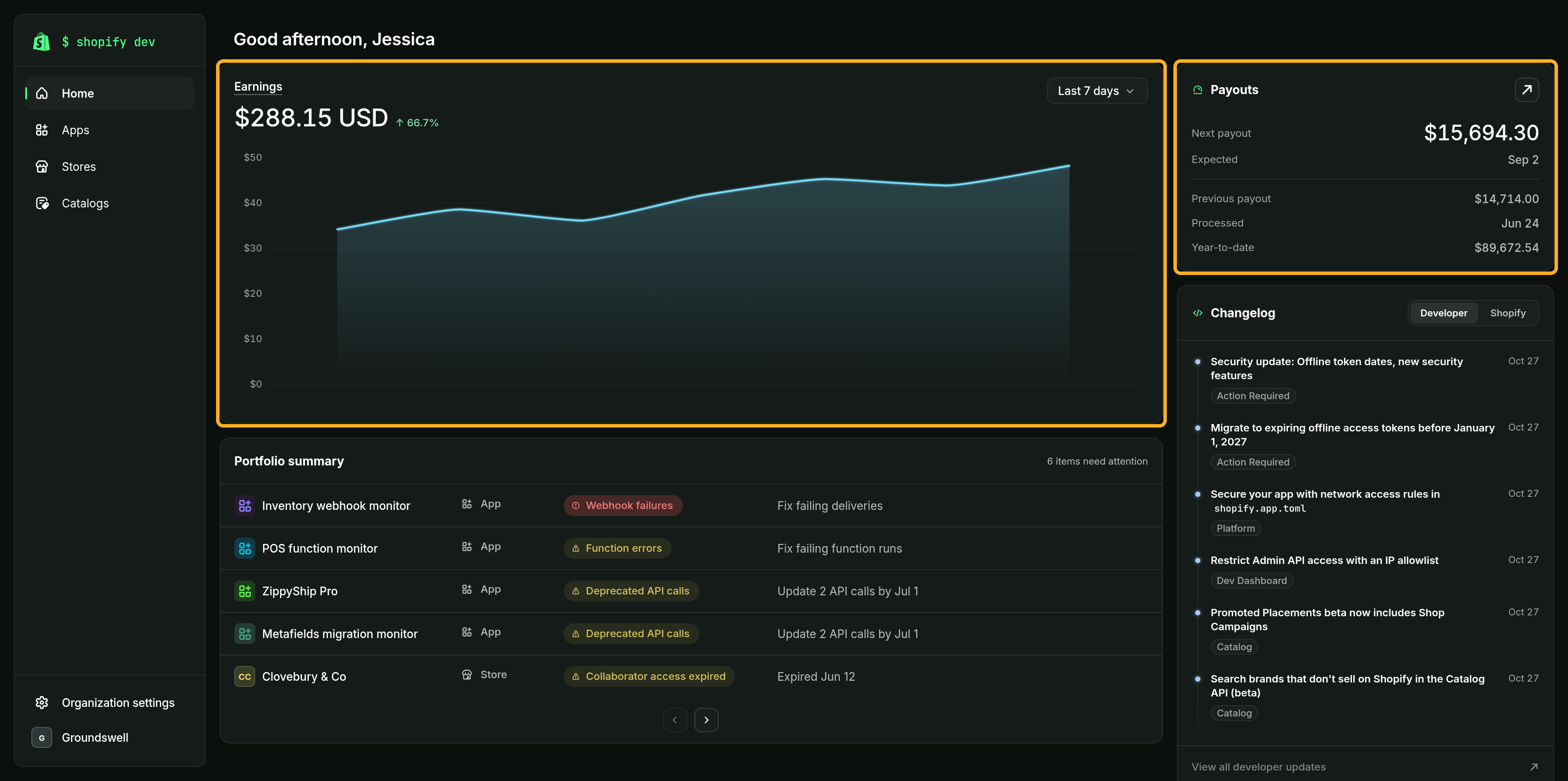
- See what needs your attention: Home shows your earnings, your next payout, and which apps and stores need attention.
- Manage your team like the rest of Shopify: Team members get roles in Organization settings, and each role decides what they can see and change.
Anchor to Where things are nowWhere things are now
Most of your Partner Dashboard work is now in the Dev Dashboard:
| Go to | For |
|---|---|
| Dev Dashboard | Your apps and stores, and what you've earned. |
| Organization settings (in the lower left of the Dev Dashboard) | Payouts, Billing, and what used to be in Partner settings: business details, your team, and API access. |
| Partner Dashboard | App distribution, charge details, and app history exports. |
If a page is missing, then check that you selected the right organization in the Dev Dashboard. If it's still missing, then ask your organization owner to check your role.
Anchor to AppsApps
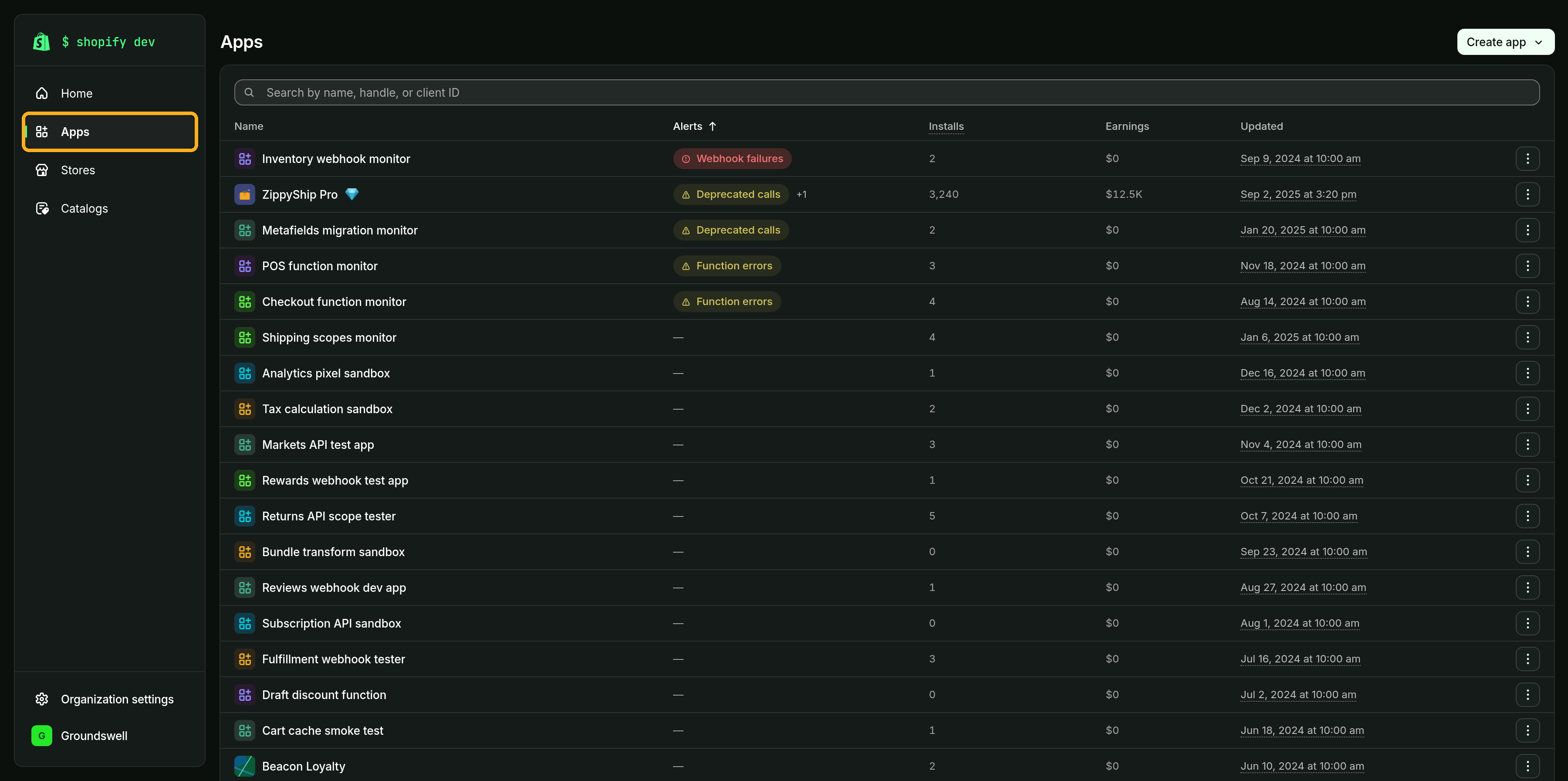
Every app you've built in the Partner Dashboard, the Dev Dashboard, or Shopify CLI is in one list under Apps in the Dev Dashboard. To create an app, click Create app.
- Creation and configuration: Create apps, and manage their settings and versions.
- Monitoring: App metrics, installs, and logs replace the Partner Dashboard's app insights. To see an app's logs, open the app, and then click Logs.
You set mandatory compliance webhooks in your app configuration file, not in a dashboard. To connect Shopify CLI to the Dev Dashboard, use the latest version.
If your app has extensions that you managed in the Partner Dashboard, or extensions that don't have a uid yet, then migrate them to Shopify CLI.
Still in the Partner Dashboard: Distribution, including your app listing, pricing, and submitting your app for App Store review.
Anchor to StoresStores
The stores you managed in the Partner Dashboard, of every type, are in one list under Stores in the Dev Dashboard. To create a store, click Create store.
- Dev stores: Build and test apps.
- Client transfer stores: Build stores to hand off to merchant clients.
- Collaborations: Manage your access to merchant stores. To ask a merchant for access, click Request store access.
Stores and installs also have their own pages:
- Store page: In Stores, click a store to see its details and which of your apps are installed on it. For a collaborator store, it also lists which of your organization's users can access the store, if your role lets you view your organization's users. With the View financials permission, it shows the store's total app and theme earnings. Refer to Stores.
- App history page: On your app's Overview, click the install count on the Installs card, and then click a store. Refer to View one store's app history.
Still in the Partner Dashboard: Charge details, refunds, app earnings and history exports, and an app's full history.

Anchor to Earnings and payoutsEarnings and payouts
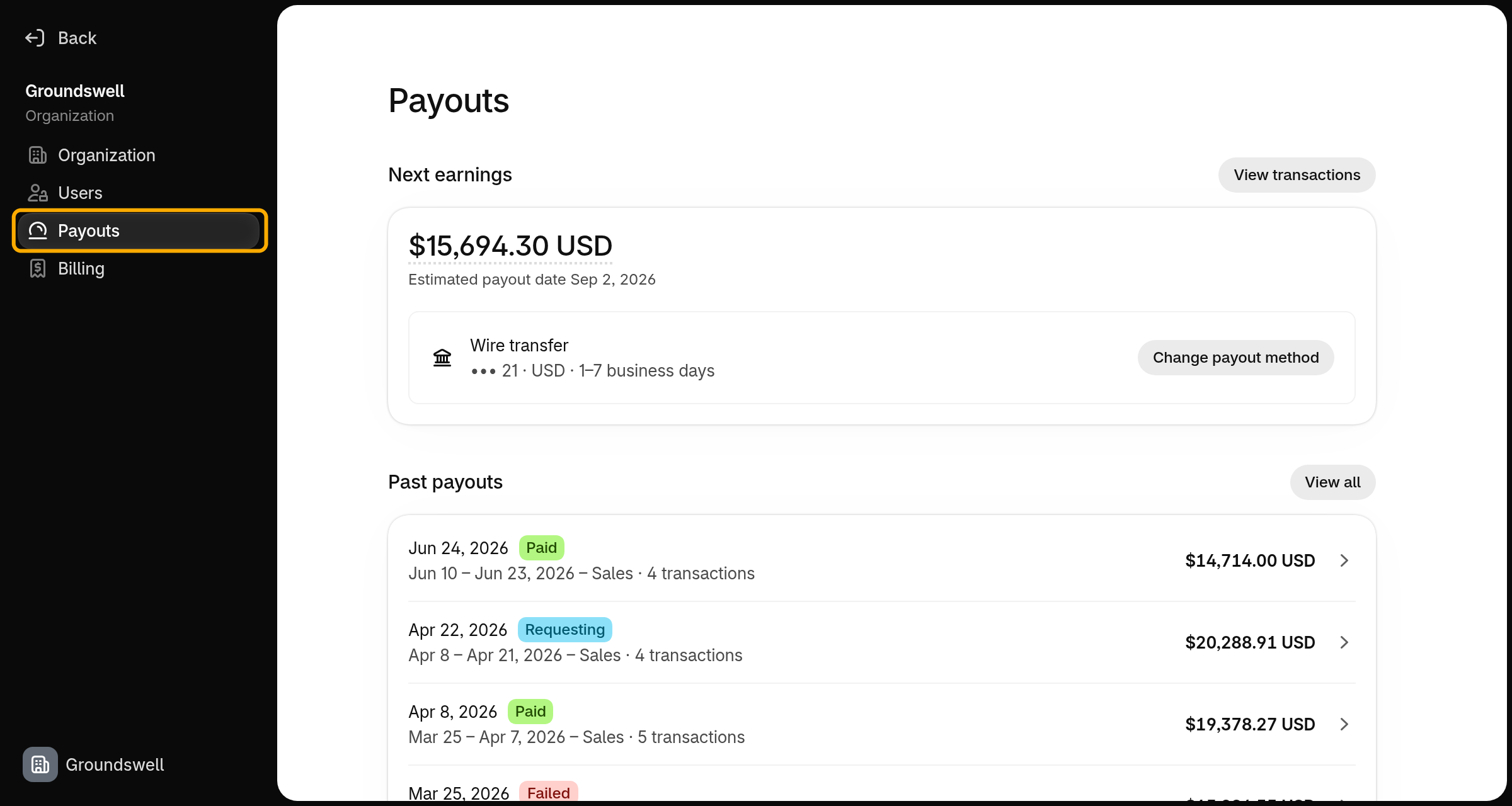
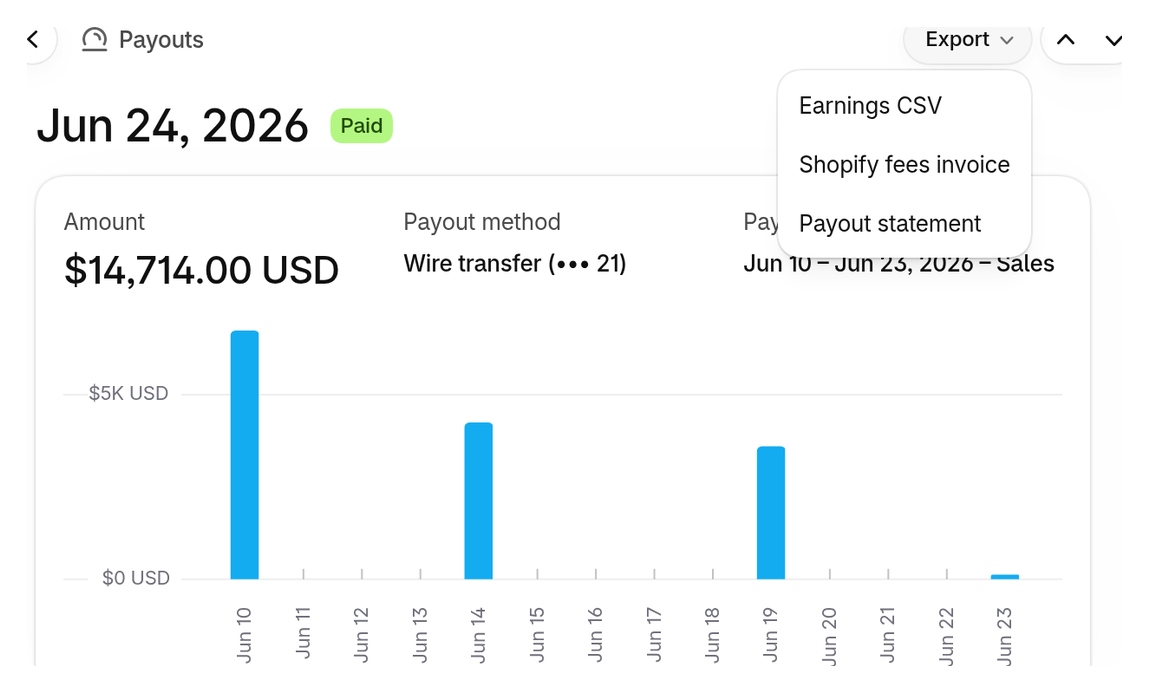
Payouts, and the payout method you set in the Partner Dashboard's Partner settings, are now in Organization settings > Payouts. Home also shows your earnings and your next payout.
To manage payouts, click Organization settings in the lower left of the Dev Dashboard, and then click Payouts:
- View your next earnings and past payouts: Under Past payouts, click a payout to see its transactions. To narrow the list, click the Apps or Themes tab, or search. Refer to View the charges in a payout.
- Download a payout's documents: Open the payout, click Export, and then click Earnings CSV, Shopify fees invoice, or Payout statement. Refer to Export payout data.
- Set up your payout method and complete payout verification: Click Change payout method, or Add payout method if you haven't set one up yet. If Shopify asks you to verify your identity, then click Update verification. You need the Manage financials permission to change the payout method.
Still in the Partner Dashboard: A charge's details. In a payout's transactions, click the charge type to open them.
Anchor to BillingBilling
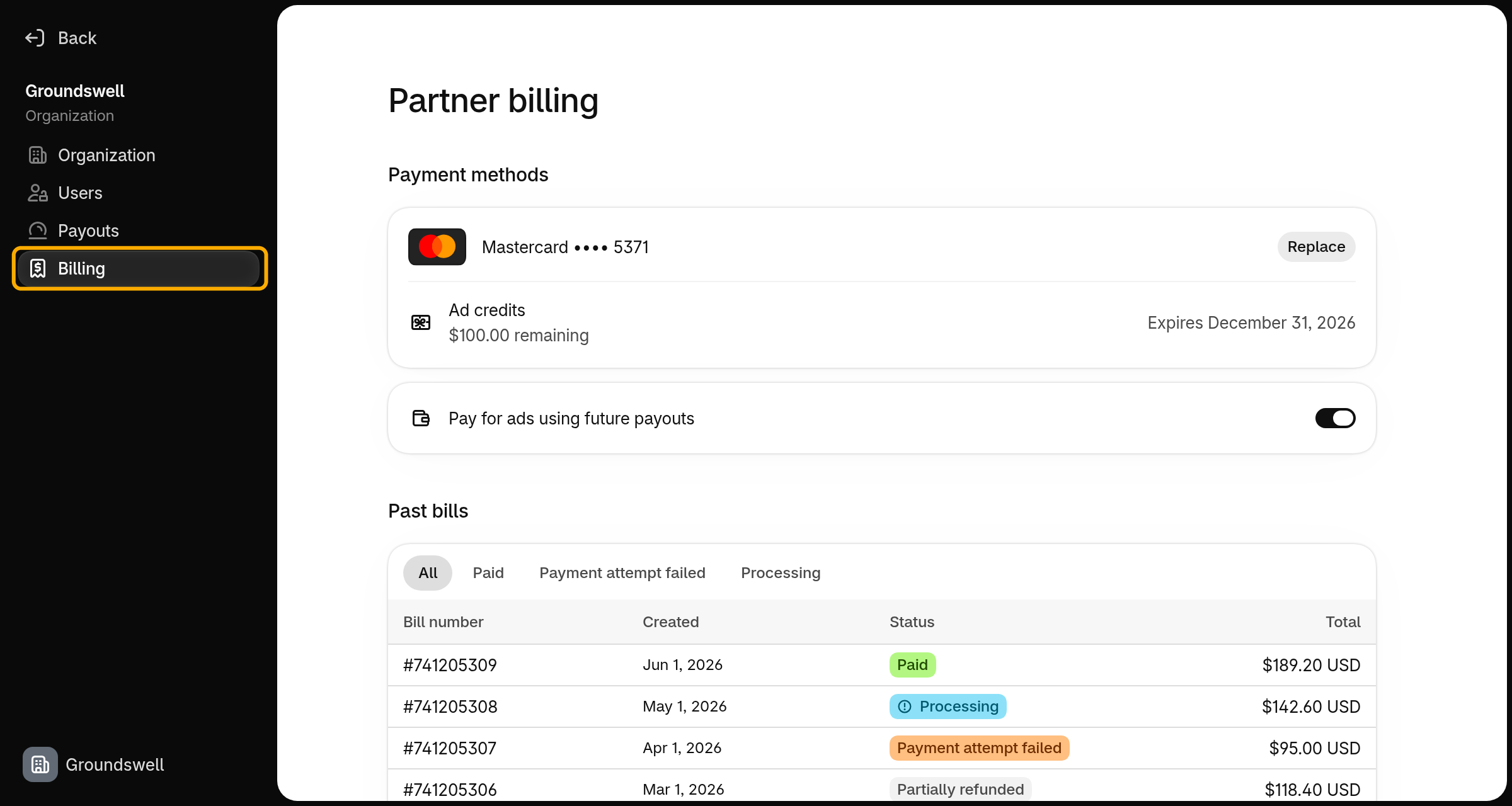
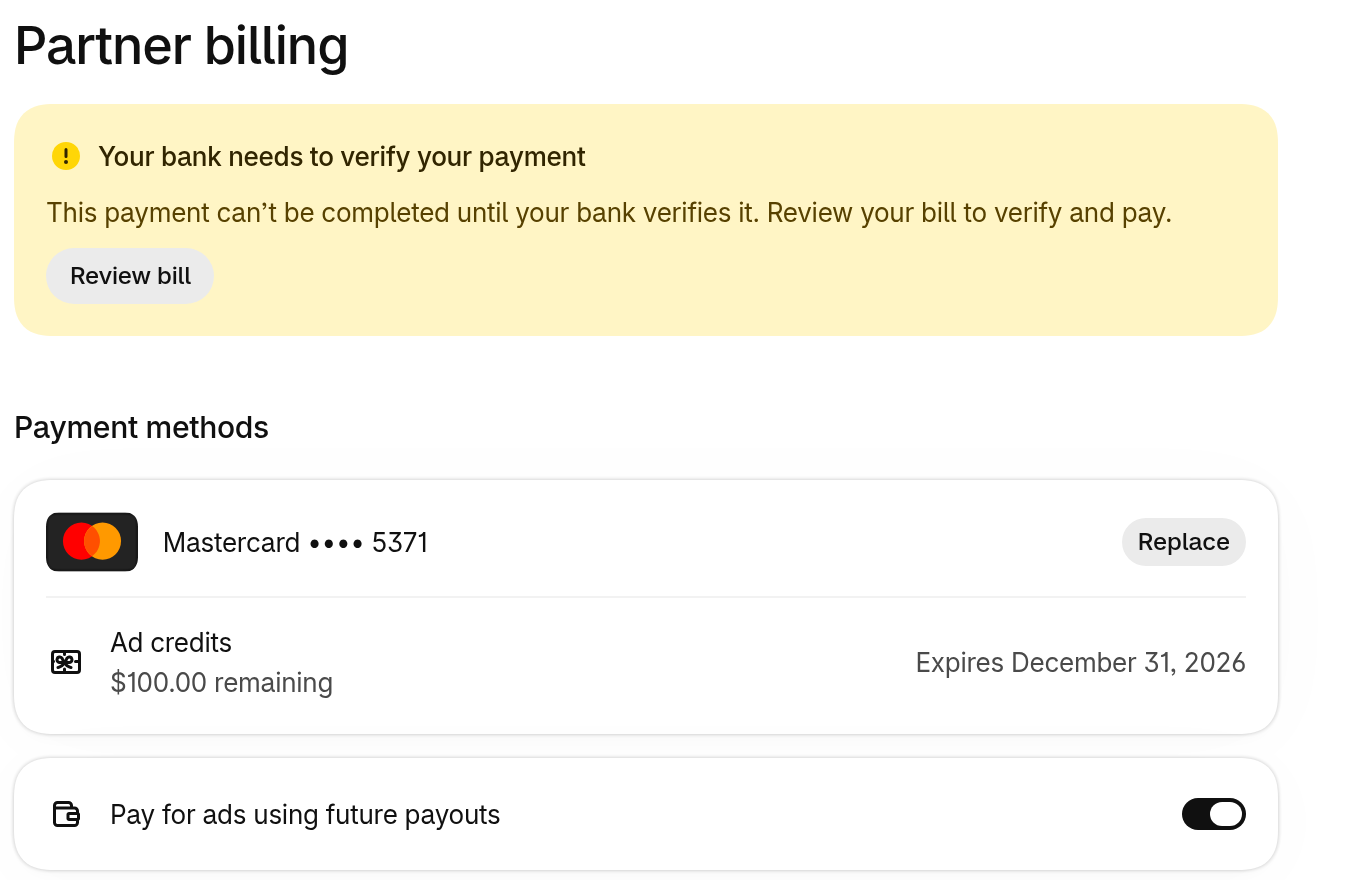
Billing moved from Partner settings to Organization settings > Billing. If your organization also has merchant billing, then the page is called Partner billing.
If you advertise on the Shopify App Store, then you pay for ads here:
- View ads bills and ad credits. To get an invoice, click a bill, and then click Download invoice.
- Manage payment methods and invoice notes.
Refer to About ad billing.
Anchor to Organization and teamOrganization and team
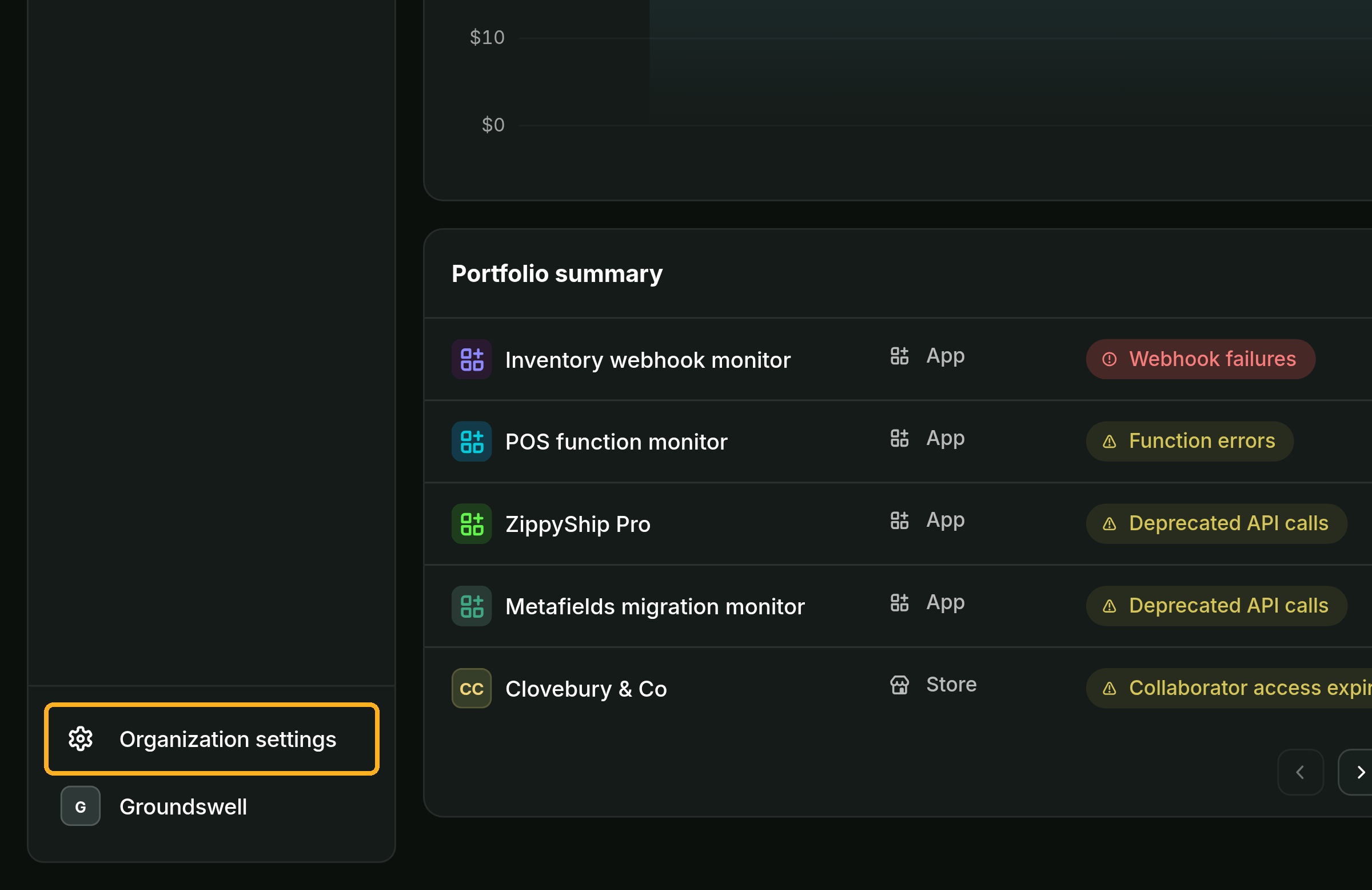
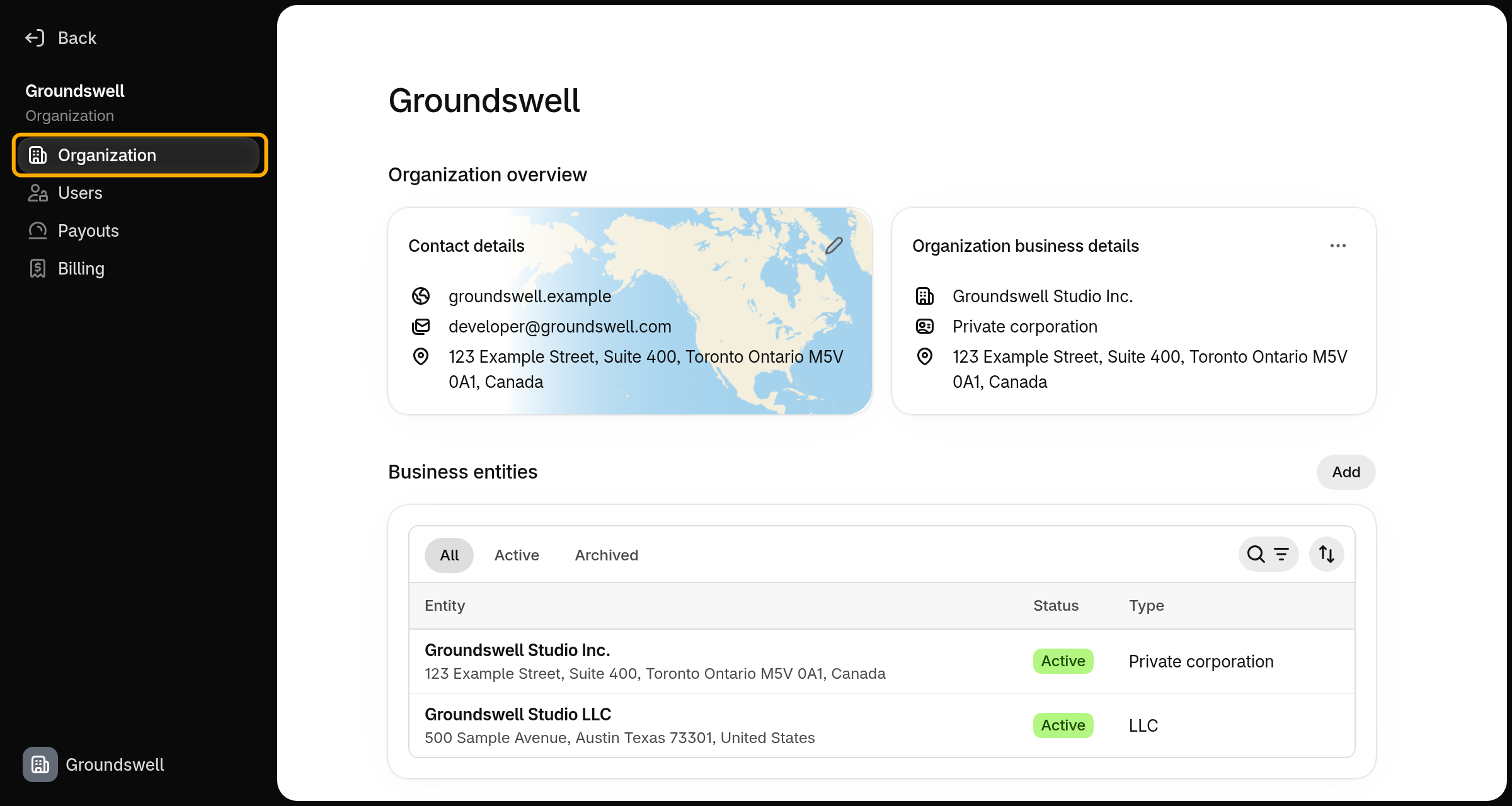
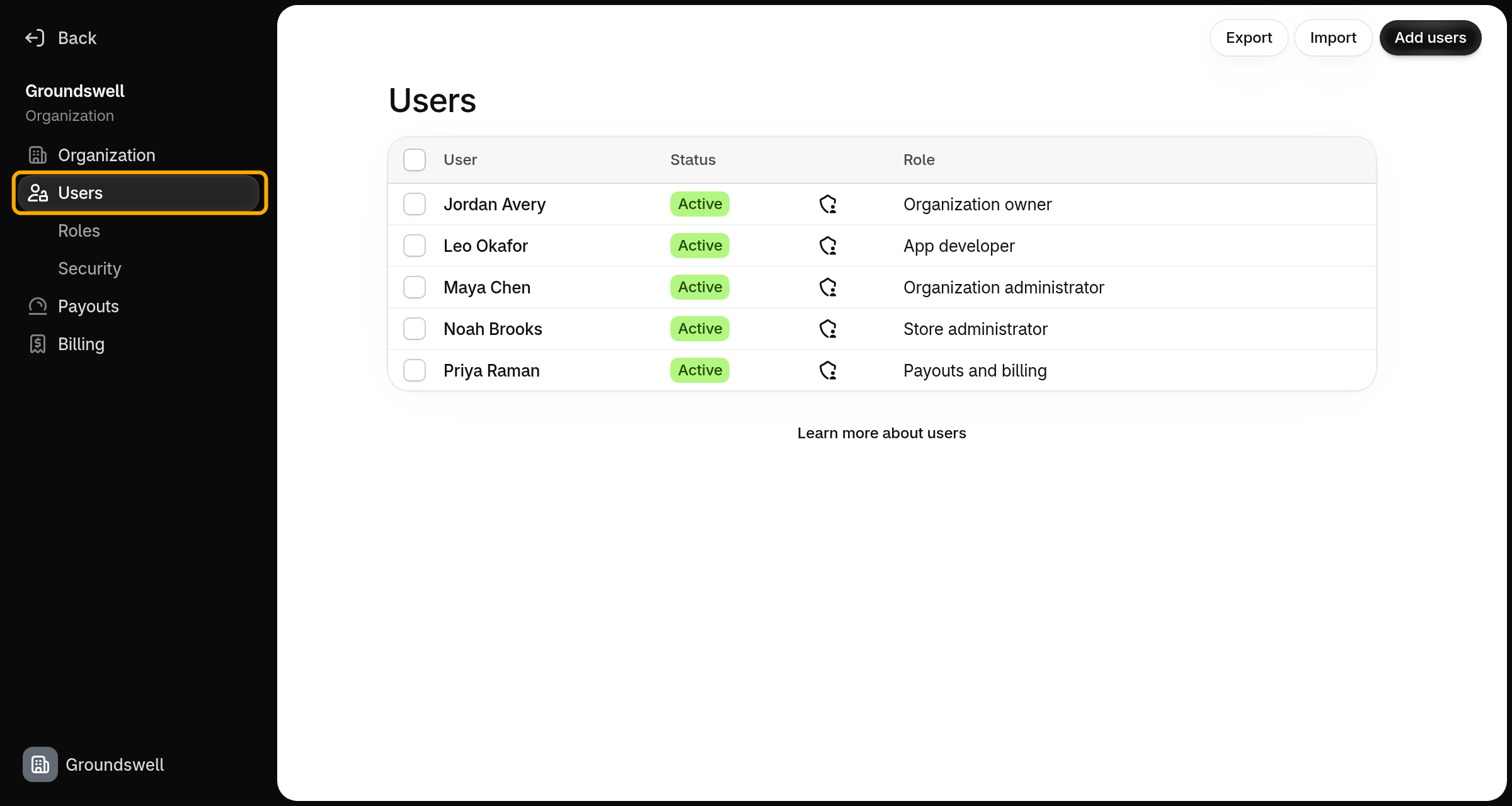
Your business details, contact information, and team moved from Partner settings to Organization settings. To open it, click Organization settings in the lower left of the Dev Dashboard.
- Organization: Manage business entities and their tax information, contact details, emergency contact information, and App Store registration.
- Users: Manage your team and their roles. To view payouts and billing, a role needs the View financials permission.
To find where each Partner setting is now, refer to Where to find each Partner setting in the Help Center.
The Partner Dashboard still shows Payouts and Partner settings in its navigation, but they open the matching pages in Organization settings. If your team's permissions are still managed in the Partner Dashboard, then you still see these pages there.
The Partner Dashboard still shows Payouts and Partner settings in its navigation, but they open the matching pages in Organization settings. If your team's permissions are still managed in the Partner Dashboard, then you still see these pages there.
Anchor to API and CLI automationAPI and CLI automation
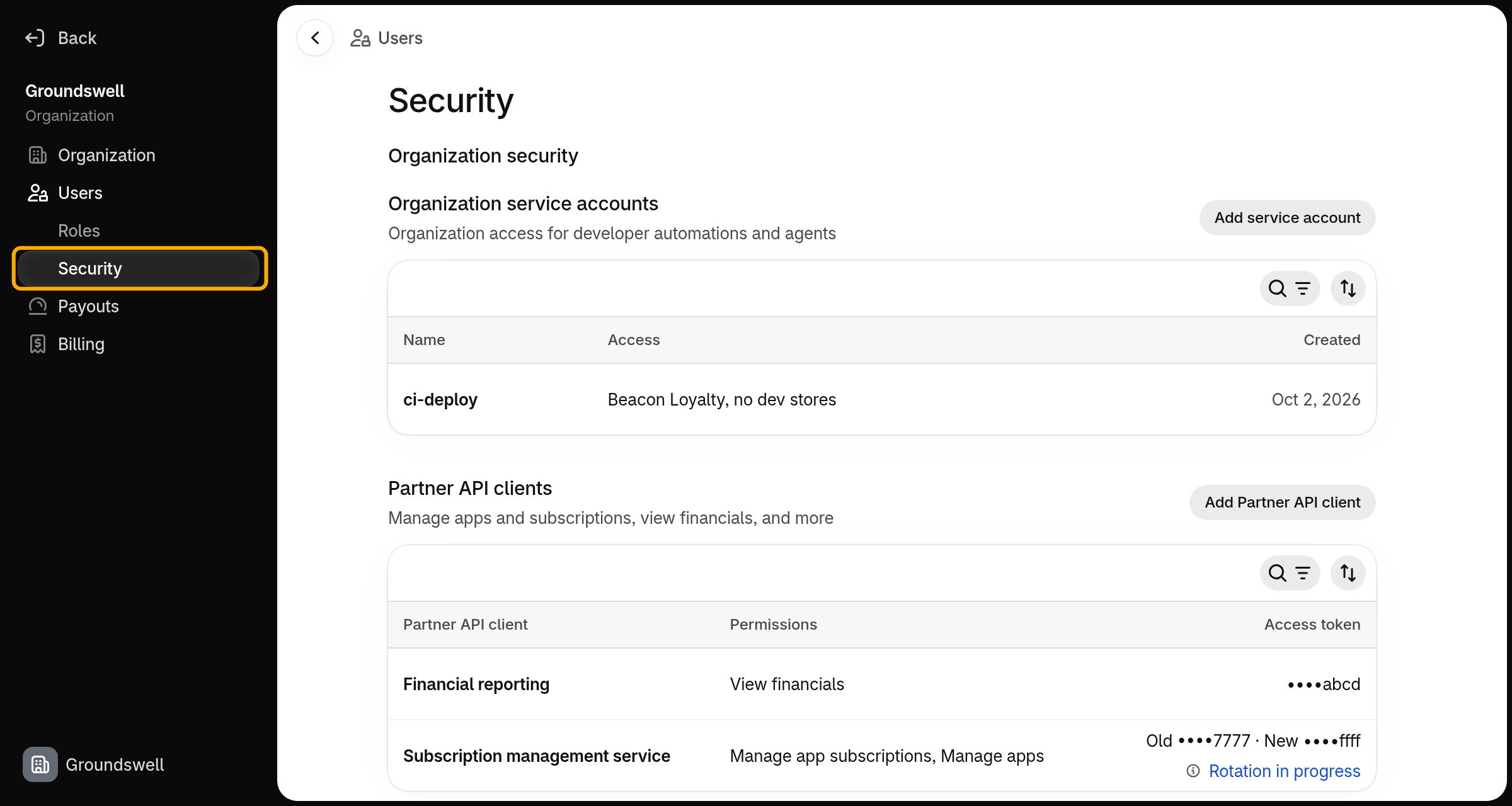
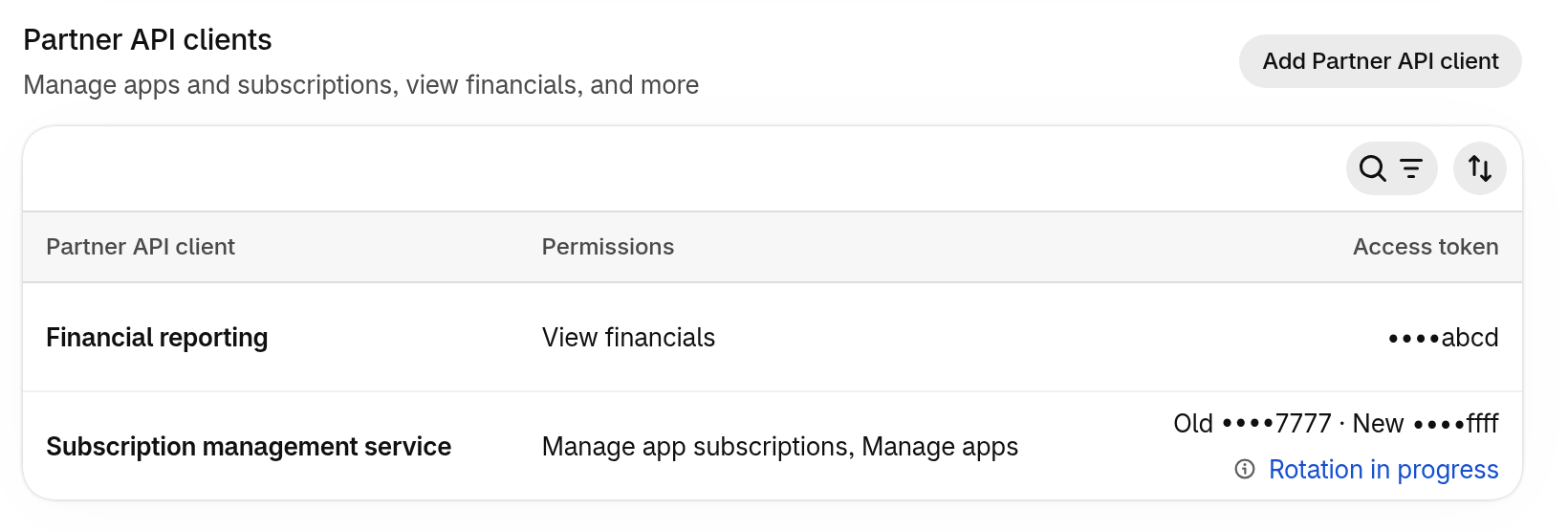
Partner API clients moved from Partner settings to Organization settings. To find them, click Users, and then click Security.
- Partner API clients: Create and manage the clients that query your organization's data.
- Service accounts: If you deploy from CI/CD with a Partner Dashboard CLI token, then create a service account token and replace
SHOPIFY_CLI_PARTNERS_TOKENwithSHOPIFY_SERVICE_ACCOUNT_TOKEN. Partner Dashboard CLI tokens expire by February 6, 2027.
Anchor to Next stepsNext steps
- Where to find each Partner setting in the Help Center.
- Configure user permissions for your team.
- Manage your stores in one list.
- Migrate app extensions to Shopify CLI if your app's extensions were managed in the Partner Dashboard or don't have a
uidyet.