Lead capture
Use the Shop SDK to capture leads on your storefront. The lead capture component recognizes returning Shop users by their email address and pre-fills available details, reducing friction at sign-up or checkout. You can request existing profile data with OAuth scopes or add a Rich Authorization Request (RAR) that prompts users for specific profile data, like their phone number or birthdate.
Anchor to What you'll learnWhat you'll learn
In this guide, you'll learn how to do the following tasks:
- Initialize the Shop SDK on your storefront.
- Create a lead capture instance and add it to your page.
- Choose between OAuth scopes and OAuth with RAR when requesting user data.
- Exchange the completed flow's consent token for the data that the user authorized.
- Handle events when a lead is captured or an error occurs.
Anchor to RequirementsRequirements
- A Shop app with a client ID.
- A storefront where you can add HTML and JavaScript.
- Optionally: A client secret and trusted server, which are required only when you fetch profile data that the lead capture component doesn't return. Your server exchanges the consent token and protects your client secret and access tokens.
Anchor to Step 1: Load and initialize the SDKStep 1: Load and initialize the SDK
Add the SDK loader script to your page and initialize it with your client ID:
HTML
Setting 'lead-capture': true in features starts loading the lead capture code as soon as the SDK initializes, so it's ready when you call sdk.create().
Anchor to Step 2: Create a lead capture instanceStep 2: Create a lead capture instance
Call sdk.create('lead-capture', config) to create an instance. The method returns a Promise that resolves once the feature is loaded and the element is ready.
JavaScript
To apply a discount after capture, add an optional onAuthenticate handler that returns a discount object with a code. If you don't provide onAuthenticate, the flow completes without applying a discount.
The code must be an existing discount code on the merchant's store, typically one you've configured to be redeemable by the customers you're capturing (for example, a one-time code per lead, or a shared code like WELCOME10). Shop validates that the discount exists before applying it; you don't need to pre-check it from your app. Create the discount in your Shopify admin (or via the Admin API) before referencing it here.
JavaScript
For the full list of attributes and event handlers, see the lead capture reference.
Anchor to Step 3: Choose how to request user dataStep 3: Choose how to request user data
All Shop SDK authentication uses OAuth. Choose OAuth scopes alone when your app only needs data that already exists on a user's Shop profile. Add RAR when your app needs Shop to prompt the user for the requested data, so that the user can provide values that are missing from their profile.
Anchor to Consuming only emailConsuming only email
If you only require the user's email address you do not need to exchange tokens: Lead capture returns the user's email address as part of the LeadCaptureCompleteEvent (see reference)
Anchor to Request existing data with OAuth scopesRequest existing data with OAuth scopes
- Add
shop_app:user:profilefor the user's existing name and avatar,shop_app:user:phonefor an existing phone number, or both. - Keep
shop_app:oauthto request the user's OpenID identifier and email address. - Send the returned
shopConsentTokento your trusted server. - Your trusted server fetches user profile data (see Get Shop user information)
JavaScript
OAuth scopes don't prompt the user to fill in missing profile values. A field resolves to null if the value isn't on the user's Shop profile or the user didn't grant its scope.
Anchor to Request and collect data with OAuth and RARRequest and collect data with OAuth and RAR
- Create a JSON array with the data-sharing authorization type and the exact datatypes that your app needs.
- Serialize the array with
JSON.stringify()and pass it asattributes.authorizationDetails. - Send the returned
shopConsentTokento your trusted server. - Your trusted server fetches user profile data (see Get Shop user information)
JavaScript
The data-sharing authorization type supports the following datatypes:
| RAR datatype | Shop API field |
|---|---|
given_name | givenName |
family_name | familyName |
phone_number | phone |
birthdate | birthdate |
Each datatype requires a Boolean required value. Before completing the app authorization, Shop prompts the user for each requested datatype that they haven't already shared with your app. The user must provide required values and can skip optional ones. If the user skips an optional value that isn't on their Shop profile, the Shop API returns null for that field. On the storefront customer record, an existing name is kept, but an existing phone number can be replaced by the phone number on the user's Shop account.
The following example shows the data capture screen when the user's Shop profile doesn't have a required birthdate.
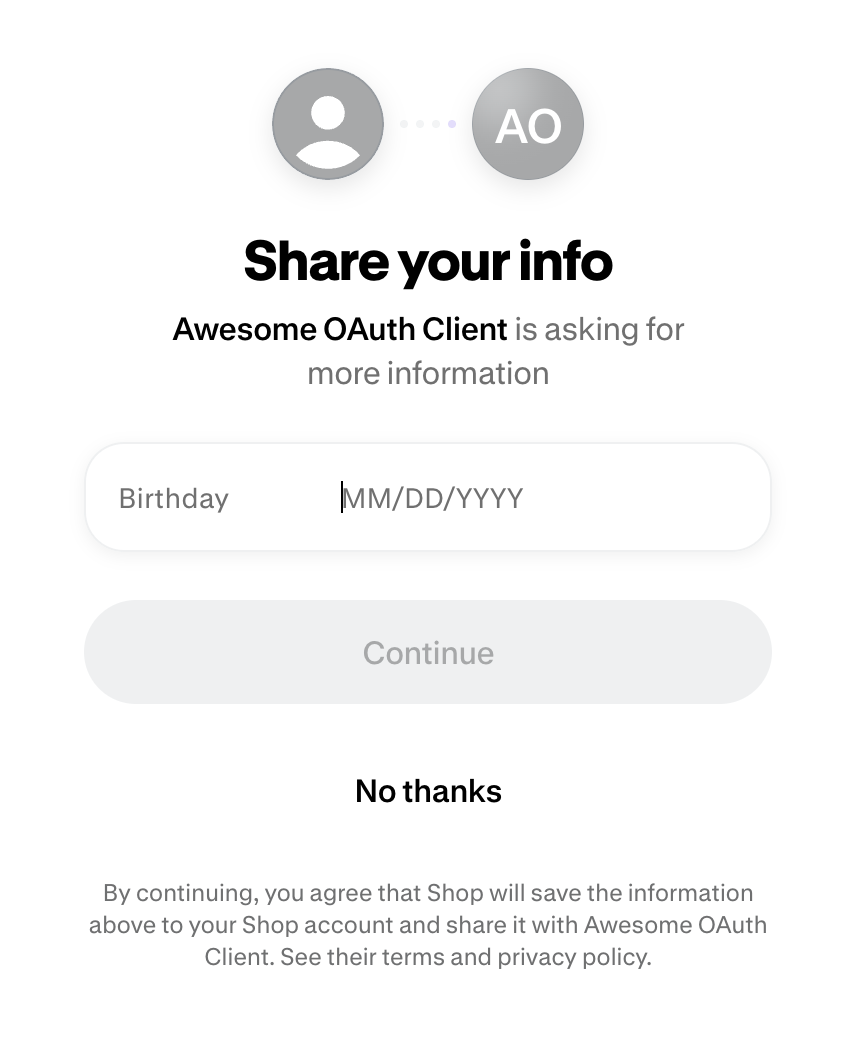
RAR data isn't returned directly in the browser's onComplete event. Follow Get Shop user information to exchange shopConsentToken from your server and query the authorized fields.
Anchor to Handle RAR completion and errorsHandle RAR completion and errors
- Handle the absence of
shopConsentToken. The user might complete merchant sign-in without authorizing your app to access the requested data. - Check
customerUpdateErrorsbefore depending on updates to the merchant's customer record. - Handle
invalid_authorization_detailsinonError.
authorizationDetails must contain a serialized JSON array. Each entry must match its registered schema. For urn:shopify:shop_app:data-sharing:v1, provide a non-empty datatypes array with only the supported names and a Boolean required value for every datatype. Shop rejects malformed JSON, unsupported fields, and authorization requests that exceed the maximum URL length instead of continuing without the requested data.
Anchor to Step 4 (Optional): Start the flow programmaticallyStep 4 (Optional): Start the flow programmatically
If you want to trigger the lead capture flow with a pre-filled email after the user types into your email input, then call start():
JavaScript
Anchor to CleanupCleanup
When you no longer need the lead capture instance, call destroy() to remove the element from the DOM and clean up event listeners:
JavaScript
Anchor to Next stepsNext steps
- Follow Get Shop user information to exchange a consent token and query authorized user data.
- Review the full Shop SDK configuration options.
- Store captured lead data as Shop user metafields.