QR code
The QR code component displays a scannable QR code representing data such as URLs or text. Use QR code to let customers quickly access information by scanning with a smartphone or other device.
QR codes support optional logo overlays for branding and can scale to fill their parent container. Always provide an alternative way for customers to access the encoded content.
QR code encodes data as a standard QR code only — other barcode formats (for example, Code 128 or EAN-13) aren't supported. The code renders at a fixed square aspect ratio; non-square containers scale the code proportionally rather than stretching it.
Supported targets
- customer-account.
footer. render-after - customer-account.
order-index. announcement. render - customer-account.
order-index. block. render - customer-account.
order-status. announcement. render - customer-account.
order-status. block. render - customer-account.
order-status. cart-line-item. render-after - customer-account.
order-status. cart-line-list. render-after - customer-account.
order-status. customer-information. render-after - customer-account.
order-status. fulfillment-details. render-after - customer-account.
order-status. payment-details. render-after - customer-account.
order-status. return-details. render-after - customer-account.
order-status. unfulfilled-items. render-after - customer-account.
order. action. menu-item. render - customer-account.
order. action. render - customer-account.
order. page. render - customer-account.
page. render - customer-account.
profile. addresses. render-after - customer-account.
profile. announcement. render - customer-account.
profile. block. render - customer-account.
profile. company-details. render-after - customer-account.
profile. company-location-addresses. render-after - customer-account.
profile. company-location-payment. render-after - customer-account.
profile. company-location-staff. render-after - customer-account.
profile. payment. render-after
Supported targets
- customer-account.
footer. render-after - customer-account.
order-index. announcement. render - customer-account.
order-index. block. render - customer-account.
order-status. announcement. render - customer-account.
order-status. block. render - customer-account.
order-status. cart-line-item. render-after - customer-account.
order-status. cart-line-list. render-after - customer-account.
order-status. customer-information. render-after - customer-account.
order-status. fulfillment-details. render-after - customer-account.
order-status. payment-details. render-after - customer-account.
order-status. return-details. render-after - customer-account.
order-status. unfulfilled-items. render-after - customer-account.
order. action. menu-item. render - customer-account.
order. action. render - customer-account.
order. page. render - customer-account.
page. render - customer-account.
profile. addresses. render-after - customer-account.
profile. announcement. render - customer-account.
profile. block. render - customer-account.
profile. company-details. render-after - customer-account.
profile. company-location-addresses. render-after - customer-account.
profile. company-location-payment. render-after - customer-account.
profile. company-location-staff. render-after - customer-account.
profile. payment. render-after
Anchor to Use casesUse cases
- Store links: Let customers scan a code to visit a store page, product listing, or promotional landing page.
- Loyalty programs: Provide scannable codes for loyalty card registration or rewards redemption.
- Return labels: Display a scannable code that customers can present at a drop-off location for returns.
- Digital receipts: Encode order details or receipt URLs for easy sharing or record-keeping.
Anchor to PropertiesProperties
Configure the following properties on the QR code component.
- Anchor to accessibilityLabelaccessibility
Labelaccessibility Label stringstringDefault: 'QR code' (translated to the user's locale)Default: 'QR code' (translated to the user's locale) A label that describes the purpose or contents of the QR code for accessibility. When set, it will be announced to users using assistive technologies such as screen readers.
- Anchor to borderborderborder'base' | 'none''base' | 'none'Default: 'base'Default: 'base'
Whether to display a border around the QR code.
'base': Applies a standard border to frame the QR code.'none': Removes the border for seamless integration with the surrounding layout.
- Anchor to contentcontentcontentstringstring
The content to be encoded in the QR code, such as a URL, email address, or plain text. When scanned, the user's device will process this content — typically by opening a URL in a browser or prompting an action based on the content type.
- Anchor to idididstringstring
A unique identifier for the element. Use this to reference the element in JavaScript, link labels to form controls, or target specific elements for styling or scripting.
- Anchor to logologologostringstring
The URL of an image to display in the center of the QR code, typically used for branding. The image should be small enough not to interfere with the QR code's scannability.
- Anchor to onErroron
Erroron Error (event: Event) => void(event: Event) => void A callback fired when the conversion of
contentto a QR code fails. This can happen when the content is too long or contains unsupported characters.- Anchor to sizesizesize'base' | 'fill''base' | 'fill'Default: 'base'Default: 'base'
The displayed size of the QR code.
'base': The QR code is displayed at its default fixed size.'fill': The QR code takes up 100% of the available inline size, useful for responsive layouts.
Anchor to EventsEvents
The QR code component provides event callbacks for handling user interactions. Learn more about handling events.
- Anchor to errorerrorerrorCallbackEventListener<typeof tagName>CallbackEventListener<typeof tagName>
A callback that's fired when the conversion of
contentto a QR code fails.
CallbackEventListener
A typed event listener for custom element events. The listener receives a `CallbackEvent` with the correct `currentTarget` type for the associated custom element tag.
(EventListener & {
      (event: CallbackEvent<TTagName, TEvent>): void;
    }) | null
CallbackEvent
An event type that narrows the `currentTarget` to the specific HTML element associated with the custom element tag. This provides type-safe event handling in callback listeners.
TEvent & {
  currentTarget: HTMLElementTagNameMap[TTagName];
}
Anchor to ExamplesExamples
Anchor to Display a QR codeDisplay a QR code
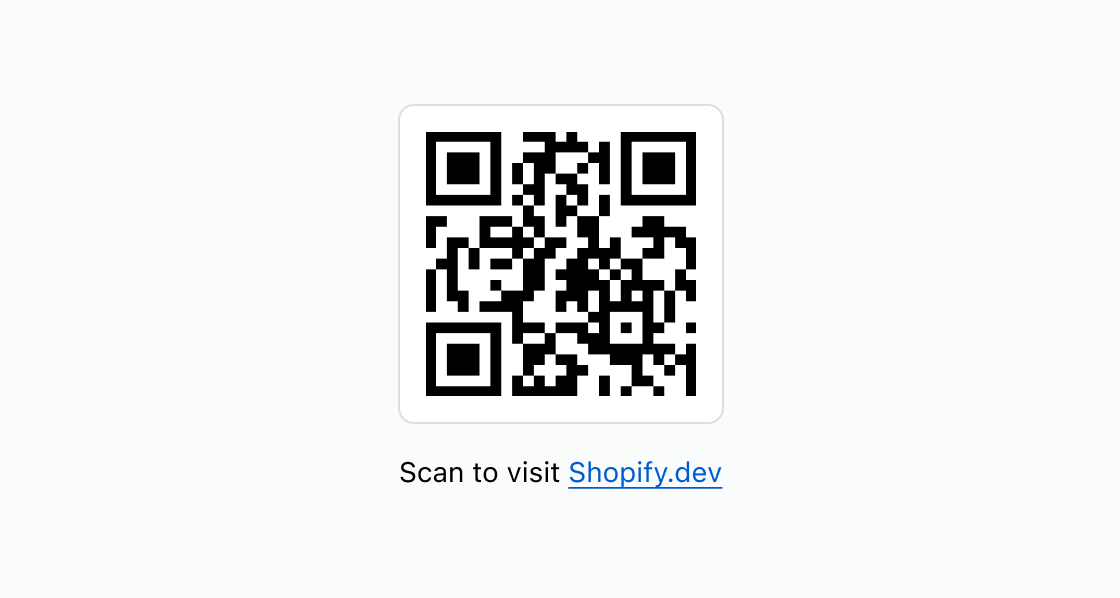
Render a scannable QR code from a URL. This example encodes a link that customers can scan with their smartphone to visit the destination.
Display a QR code
html
Anchor to Add a logo overlayAdd a logo overlay
Include a branded logo in the center of the QR code for recognition and trust. This example uses the logo property to overlay an image on the code.
html
Anchor to Fill a containerFill a container
Scale the QR code to fill its parent container. This example sets size="fill" so the code expands to match the available width.
html
Anchor to Provide a text alternativeProvide a text alternative
Pair the QR code with a text link so all customers can access the content. This example adds a paragraph with a clickable link below the code for customers who can't scan.
html
Anchor to Best practicesBest practices
- Always test that the QR code scans correctly: Verify the code scans from a smartphone before publishing. Test at different sizes and screen brightness levels.
- Use a square logo when customers expect one: Adding a logo increases brand trust and sets expectations for the action when scanning.
- Add a text description of what the QR code does: Include a brief label or heading near the QR code so customers know what they'll get after scanning.
- Provide an alternative way to access the content: Not all customers can scan QR codes. For URLs, add an
s-linknearby. For data, add ans-buttonto copy to clipboard, or show it in a readonlys-text-field.