Money field
The money field component collects monetary values from customers with built-in currency formatting and validation. Use money field for prices, costs, or financial amounts to provide proper currency symbols, decimal handling, and numeric validation.
Money fields support automatic formatting and min/max constraints to ensure customers enter valid monetary values. For non-currency numeric input, use number field.
Supported targets
- customer-account.
footer. render-after - customer-account.
order-index. announcement. render - customer-account.
order-index. block. render - customer-account.
order-status. announcement. render - customer-account.
order-status. block. render - customer-account.
order-status. cart-line-item. render-after - customer-account.
order-status. cart-line-list. render-after - customer-account.
order-status. customer-information. render-after - customer-account.
order-status. fulfillment-details. render-after - customer-account.
order-status. payment-details. render-after - customer-account.
order-status. return-details. render-after - customer-account.
order-status. unfulfilled-items. render-after - customer-account.
order. action. menu-item. render - customer-account.
order. action. render - customer-account.
order. page. render - customer-account.
page. render - customer-account.
profile. addresses. render-after - customer-account.
profile. announcement. render - customer-account.
profile. block. render - customer-account.
profile. company-details. render-after - customer-account.
profile. company-location-addresses. render-after - customer-account.
profile. company-location-payment. render-after - customer-account.
profile. company-location-staff. render-after - customer-account.
profile. payment. render-after
Supported targets
- customer-account.
footer. render-after - customer-account.
order-index. announcement. render - customer-account.
order-index. block. render - customer-account.
order-status. announcement. render - customer-account.
order-status. block. render - customer-account.
order-status. cart-line-item. render-after - customer-account.
order-status. cart-line-list. render-after - customer-account.
order-status. customer-information. render-after - customer-account.
order-status. fulfillment-details. render-after - customer-account.
order-status. payment-details. render-after - customer-account.
order-status. return-details. render-after - customer-account.
order-status. unfulfilled-items. render-after - customer-account.
order. action. menu-item. render - customer-account.
order. action. render - customer-account.
order. page. render - customer-account.
page. render - customer-account.
profile. addresses. render-after - customer-account.
profile. announcement. render - customer-account.
profile. block. render - customer-account.
profile. company-details. render-after - customer-account.
profile. company-location-addresses. render-after - customer-account.
profile. company-location-payment. render-after - customer-account.
profile. company-location-staff. render-after - customer-account.
profile. payment. render-after
Anchor to Use casesUse cases
- Prices: Let customers enter a custom tip with currency formatting and optional min/max constraints.
- Donation fields: Collect a donation amount with the correct currency symbol.
- Custom pricing: Accept customer-defined prices for pay-what-you-want products or gift card values.
- Range constraints: Enforce minimum and maximum values with step increments for guided entry.
Anchor to PropertiesProperties
Configure the following properties on the money field component.
- Anchor to autocompleteautocompleteautocompleteAutocompleteField | `${AutocompleteSection} ${AutocompleteField}` | `${AutocompleteGroup} ${AutocompleteField}` | `${AutocompleteSection} ${AutocompleteGroup} ${AutocompleteField}` | "on" | "off"AutocompleteField | `${AutocompleteSection} ${AutocompleteField}` | `${AutocompleteGroup} ${AutocompleteField}` | `${AutocompleteSection} ${AutocompleteGroup} ${AutocompleteField}` | "on" | "off"Default: 'on'Default: 'on'
A hint about the intended content of the field for browser autofill.
When set to
on(the default), this property indicates that the field should support autofill, but you do not have any more semantic information on the intended contents.When set to
off, you are indicating that this field contains sensitive information, or contents that are never saved, like one-time codes.Alternatively, you can provide value which describes the specific data you would like to be entered into this field during autofill.
Learn more about the set of autocomplete values supported in browsers.
- Anchor to defaultValuedefault
Valuedefault Value stringstring The initial value of the field when it first loads. Unlike
placeholder, this is a real value that the user can edit and that gets submitted with the form. Once the user starts typing, their input replaces this value.- Anchor to disableddisableddisabledbooleanbooleanDefault: falseDefault: false
Whether the field is disabled, preventing any user interaction.
- Anchor to errorerrorerrorstringstring
An error message displayed below the field to indicate validation problems. When set, the field is styled with error indicators and the message is announced to screen readers.
- Anchor to idididstringstring
A unique identifier for the element. Use this to reference the element in JavaScript, link labels to form controls, or target specific elements for styling or scripting.
- Anchor to labellabellabelstringstring
The text displayed as the field label, which identifies the purpose of the field to users. This label is associated with the field for accessibility and helps users understand what information to provide.
- Anchor to labelAccessibilityVisibilitylabel
Accessibility Visibilitylabel Accessibility Visibility 'visible' | 'exclusive''visible' | 'exclusive'Default: 'visible'Default: 'visible' Controls whether the label is visible to all users or only to screen readers.
visible: The label is shown to everyone.exclusive: The label is visually hidden but still announced by screen readers.
- Anchor to maxmaxmaxnumbernumberDefault: InfinityDefault: Infinity
The highest decimal or integer to be accepted for the field. When used with
stepthe value will round down to the max number.Note: a user can still use the keyboard to input a number higher than the max. It's up to the developer to add appropriate validation.
- Anchor to minminminnumbernumberDefault: -InfinityDefault: -Infinity
The lowest decimal or integer to be accepted for the field. When used with
stepthe value will round up to the min number.Note: a user can still use the keyboard to input a number lower than the min. It's up to the developer to add appropriate validation.
- Anchor to namenamenamestringstring
The name attribute for the field, used to identify the field's value when the form is submitted. Must be unique within the nearest containing form.
- Anchor to readOnlyread
Onlyread Only booleanbooleanDefault: falseDefault: false Whether the field is read-only and can't be edited. Read-only fields remain focusable and their content is announced by screen readers.
- Anchor to requiredrequiredrequiredbooleanbooleanDefault: falseDefault: false
Whether the field needs a value. This requirement adds semantic value to the field, but it will not cause an error to appear automatically. If you want to present an error when this field is empty, you can do so with the
errorproperty.- Anchor to stepstepstepnumbernumberDefault: 1Default: 1
The amount the value can increase or decrease by. This can be an integer or decimal. If a
maxorminis specified withstepwhen increasing/decreasing the value via the buttons, the final value will always round to themaxorminrather than the closest valid amount.- Anchor to valuevaluevaluestringstring
The current value for the field. If omitted, the field will be empty.
AutocompleteSection
The “section” scopes the autocomplete data that should be inserted to a specific area of the page. Commonly used when there are multiple fields with the same autocomplete needs in the same page. For example: 2 shipping address forms in the same page.
`section-${string}`AutocompleteGroup
The contact information group the autocomplete data should be sourced from.
"shipping" | "billing"Anchor to EventsEvents
The money field component provides event callbacks for handling user interactions. Learn more about handling events.
- Anchor to blurblurblurCallbackEventListener<typeof tagName>CallbackEventListener<typeof tagName>
A callback fired when the money field loses focus.
Learn more about the blur event.
- Anchor to changechangechangeCallbackEventListener<typeof tagName>CallbackEventListener<typeof tagName>
A callback fired when the money field value is committed on blur or after pressing Enter. Also fired on each step when using the Up Arrow and Down Arrow keys.
Learn more about the change event.
- Anchor to focusfocusfocusCallbackEventListener<typeof tagName>CallbackEventListener<typeof tagName>
A callback fired when the money field receives focus.
Learn more about the focus event.
- Anchor to inputinputinputCallbackEventListener<typeof tagName>CallbackEventListener<typeof tagName>
A callback fired when the user inputs data into the money field. Also fired on each step when using the Up Arrow and Down Arrow keys.
Learn more about the input event.
CallbackEventListener
A typed event listener for custom element events. The listener receives a `CallbackEvent` with the correct `currentTarget` type for the associated custom element tag.
(EventListener & {
      (event: CallbackEvent<TTagName, TEvent>): void;
    }) | null
CallbackEvent
An event type that narrows the `currentTarget` to the specific HTML element associated with the custom element tag. This provides type-safe event handling in callback listeners.
TEvent & {
  currentTarget: HTMLElementTagNameMap[TTagName];
}
Anchor to ExamplesExamples
Anchor to Collect a currency valueCollect a currency value
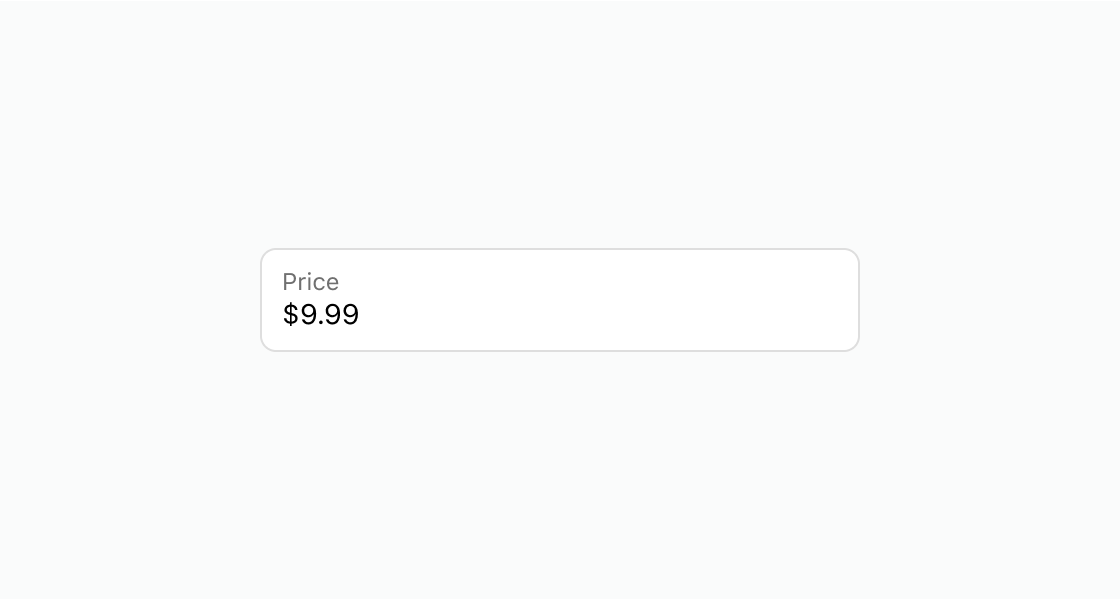
Display a money input for collecting prices or amounts. This example shows a money field with a label and a defaultValue.Collect a currency value
html
Anchor to Set value constraintsSet value constraints
Limit input to a valid range with minimum and maximum bounds. This example configures a money field with min and max constraints and a pre-filled value.html
Anchor to Show a validation errorShow a validation error
Display an error message when the entered value is invalid. This example shows a required money field with an error message.html
Anchor to Best practicesBest practices
- Use step increments: Set a
stepvalue to guide customers toward valid amounts, such as0.50for half-dollar increments. - Constrain ranges: Use
minandmaxto prevent unreasonable values, such as negative amounts or excessively high tips. - Label with context: Write labels that describe the purpose, such as "Price" or "Donation," not just "Amount."