Information
The information step is where buyers enter their email address or phone number and, for shipping orders, a delivery address. Use this target to add UI immediately after the contact form, such as marketing opt-in checkboxes, loyalty account lookups, or contact verification messaging.
Contact data at this target is read-only. Extensions can read the buyer's contact information through shopify.buyerIdentity but can't modify the contact form fields or pre-fill values programmatically.
Anchor to Use casesUse cases
- Marketing opt-in: Display a checkbox after the email field to collect buyer consent for email or SMS marketing and store the opt-in status.
- Loyalty account lookup: Check whether the buyer's email matches an existing loyalty account, and display their points balance or membership tier to encourage checkout completion.
- Phone or email verification: Display a verification prompt or format guidance after the buyer enters their phone number or email address, helping ensure accurate contact information before the order is placed.
- Gift messaging: Collect a gift message or special delivery instructions right after the contact form, and attach the information to the order.
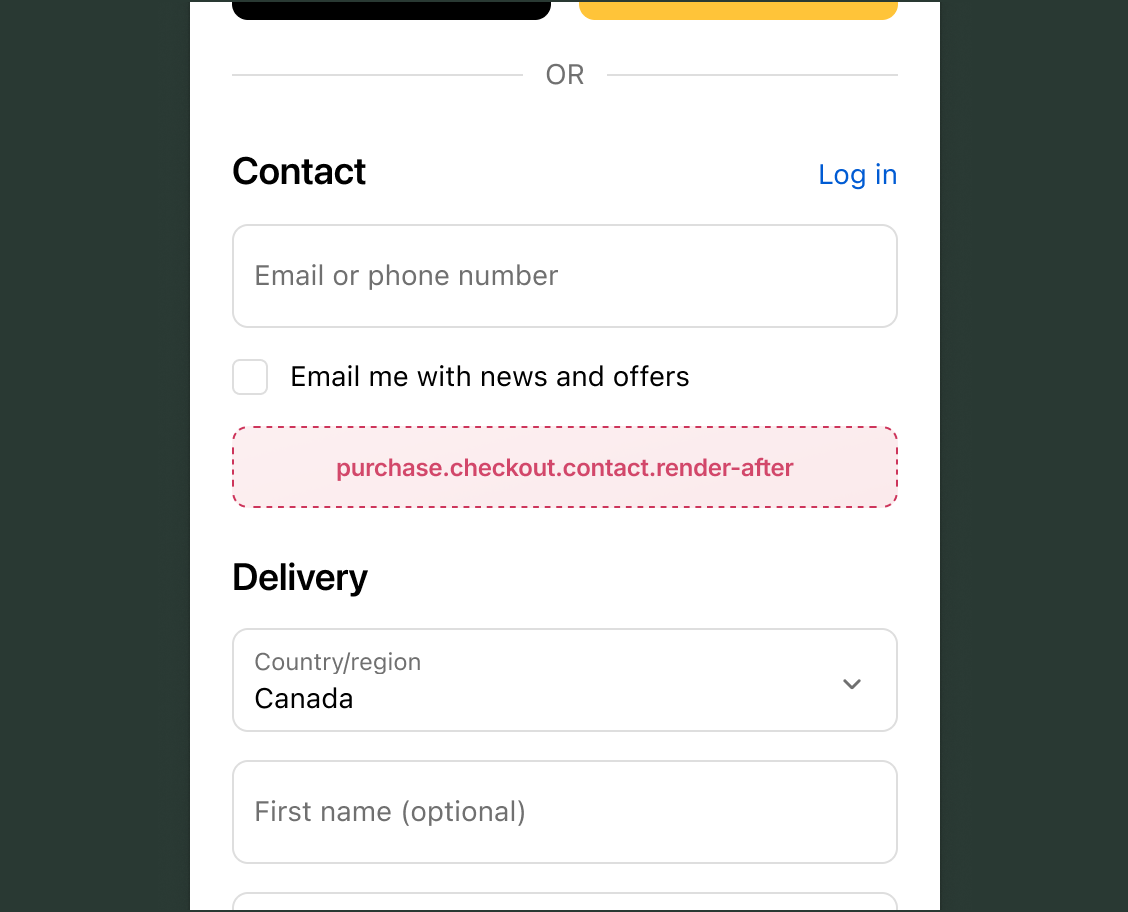
Anchor to Information targetInformation target
A static extension target that renders below the customer information section in checkout. Unlike block targets, this target always renders in a fixed position relative to the customer information.
Anchor to Render after contact form ,[object Object]Render after contact form target
purchase.checkout.contact.render-after
Renders immediately after the contact form element on the information step. Use this target to display consent checkboxes, account lookups, or supplementary fields that relate to the buyer's contact information.
Read access to cart contents, buyer identity, and delivery details is available through API properties. Write operations are available through the note API and metafields API. Use cart instructions to check which mutations are available before calling them.
Supported components
- Abbreviation
- Badge
- Banner
- Box
- Button
- Chat
- Checkbox
- Chip
- Choice list
- Clickable
- Clickable chip
- Clipboard item
- Consent checkbox
- Consent phone field
- Date field
- Date picker
- Details
- Divider
- Drop zone
- Email field
- Form
- Grid
- Heading
- Icon
- Image
- Link
- Map
- Modal
- Money field
- Number field
- Ordered list
- Paragraph
- Password field
- Payment icon
- Phone field
- Popover
- Press button
- Product thumbnail
- Progress
- Qr code
- Query container
- Scroll box
- Section
- Select
- Sheet
- Skeleton paragraph
- Spinner
- Stack
- Switch
- Text
- Text area
- Text field
- Time
- Tooltip
- Unordered list
- Url field
Available APIs
- Addresses API
- Analytics API
- Attributes API
- Buyer Identity API
- Buyer Journey API
- Cart Instructions API
- Cart Lines API
- Checkout Token API
- Cost API
- Customer Privacy API
- Delivery API
- Discounts API
- Extension API
- Gift Cards API
- Localization API
- Localized Fields API
- Metafields API
- Note API
- Payments API
- Session Token API
- Settings API
- Shop API
- Storage API
- Storefront API
Supported components
- Abbreviation
- Badge
- Banner
- Box
- Button
- Chat
- Checkbox
- Chip
- Choice list
- Clickable
- Clickable chip
- Clipboard item
- Consent checkbox
- Consent phone field
- Date field
- Date picker
- Details
- Divider
- Drop zone
- Email field
- Form
- Grid
- Heading
- Icon
- Image
- Link
- Map
- Modal
- Money field
- Number field
- Ordered list
- Paragraph
- Password field
- Payment icon
- Phone field
- Popover
- Press button
- Product thumbnail
- Progress
- Qr code
- Query container
- Scroll box
- Section
- Select
- Sheet
- Skeleton paragraph
- Spinner
- Stack
- Switch
- Text
- Text area
- Text field
- Time
- Tooltip
- Unordered list
- Url field
Available APIs
- Addresses API
- Analytics API
- Attributes API
- Buyer Identity API
- Buyer Journey API
- Cart Instructions API
- Cart Lines API
- Checkout Token API
- Cost API
- Customer Privacy API
- Delivery API
- Discounts API
- Extension API
- Gift Cards API
- Localization API
- Localized Fields API
- Metafields API
- Note API
- Payments API
- Session Token API
- Settings API
- Shop API
- Storage API
- Storefront API
Preact
Examples
Collect marketing consent after the contact form
Description
Display a checkbox after the contact form that lets buyers opt in to email marketing. This example checks whether cart metafields can be written, then stores the opt-in status as a cart metafield that copies to the order.
Preact
import '@shopify/ui-extensions/preact';
import {render} from 'preact';

export default function extension() {
  render(<Extension />, document.body);
}

function Extension() {
  async function onCheckboxChange(event) {
    const isChecked = event.currentTarget.checked;
    if (!shopify.instructions.value.metafields.canSetCartMetafields) {
      return;
    }
    try {
      if (isChecked) {
        await shopify.applyMetafieldChange({
          type: 'updateCartMetafield',
          metafield: {
            namespace: '$app:marketing',
            key: 'email_opt_in',
            value: 'true',
            type: 'single_line_text_field',
          },
        });
      } else {
        await shopify.applyMetafieldChange({
          type: 'removeCartMetafield',
          namespace: '$app:marketing',
          key: 'email_opt_in',
        });
      }
    } catch {
      event.currentTarget.checked = !isChecked;
    }
  }

  return (
    <s-checkbox
      onChange={onCheckboxChange}
      label="Send me emails about new products and promotions"
    />
  );
}
Collect a gift message after the contact form
Description
Display a text field after the contact form where buyers can add a gift message. This example stores the message as a cart metafield.
Preact
import '@shopify/ui-extensions/preact';
import {render} from 'preact';

export default function extension() {
  render(<Extension />, document.body);
}

function Extension() {
  async function onInput(event) {
    const value = event.currentTarget.value;
    if (
      !shopify.instructions.value.metafields
        .canSetCartMetafields
    ) {
      return;
    }
    try {
      await shopify.applyMetafieldChange({
        type: 'updateCartMetafield',
        metafield: {
          namespace: '$app:gifting',
          key: 'message',
          value,
          type: 'single_line_text_field',
        },
      });
    } catch {}
  }

  return (
    <s-text-field
      label="Gift message (optional)"
      onInput={onInput}
    />
  );
}
Anchor to Best practicesBest practices
- Revert UI on failure: When a mutation fails, revert the UI to its previous state so buyers aren't misled into thinking their input was saved.