Picker API
App Bridge isn't versioned with Polaris. App Bridge APIs and web components are identical in every App Home reference version.
App Bridge isn't versioned with Polaris. App Bridge APIs and web components are identical in every App Home reference version.
The Picker API lets merchants search for and select items from your app-specific data, such as product reviews, email templates, or subscription options. Use this API to build custom selection dialogs with your own data structure, badges, and thumbnails. The picker returns the IDs of selected items.
If you need to pick Shopify products, variants, or collections, use the Resource Picker API instead.
If you need to pick Shopify products, variants, or collections, use the Resource Picker API instead.
Anchor to Use casesUse cases
- Custom resource selection: Help users find and select app-specific resources like email templates or subscription options.
- Search interface: Provide a search-based interface for users to find resources from your app's data.
- Multi-select: Allow users to select one or more items from a searchable list.
- Custom data sources: Build pickers backed by your own data sources with custom search and filtering.
Anchor to InputsInputs
The picker function opens a custom selection dialog with your app-specific data. It accepts configuration options to define the picker's heading, items, headers, and selection behavior. It returns a Promise that resolves to a Picker object with a selected property for accessing the merchant's selection.
- Anchor to headingheadingheadingstringstringrequiredrequired
The heading displayed at the top of the picker modal. Use a clear, descriptive title that tells merchants what they're selecting.
- Anchor to itemsitemsitemsPickerItem[]PickerItem[]requiredrequired
The list of items that merchants can select from. Each item appears as a row in the picker table.
- Anchor to headersheadersheadersHeader[]Header[]
The column headers for the picker table. Define headers to label and organize the data columns displayed for each item. The header order determines the column layout.
- Anchor to multiplemultiplemultipleboolean | numberboolean | numberDefault: falseDefault: false
The selection mode for the picker. Pass
trueto allow unlimited selections,falsefor single-item selection only, or a number to set a maximum selection limit (for example,3allows up to three items).
Header
The configuration for a table column header in the picker. Each header creates a labeled column that displays corresponding data from items.
- content
The label text displayed at the top of the table column. Use clear, concise labels that describe the data in that column (for example, "Price", "Status", "Last Updated").
string - type
The data type that controls column formatting and text alignment. Use `'number'` for currency, prices, or numeric values (displays right-aligned), or `'string'` for text content (displays left-aligned).
'string' | 'number'
PickerItem
An individual item that merchants can select in the picker. Each item appears as a row in the picker table.
- badges
Status or context badges displayed next to the heading in the first column. Use badges to highlight item state, completion status, or other important attributes (for example, "Draft", "Published", "Incomplete").
Badge[] - data
Additional data displayed in subsequent columns after the heading. Each value appears in its own column, and the order must match the `headers` array. For example, if headers are `["Price", "Status"]`, then data would be `[19.99, "Active"]`.
DataPoint[] - disabled
Whether the item can be selected. When `true`, the item is disabled and can't be selected. Disabled items appear grayed out. Use this for items that are unavailable or don't meet selection criteria.
boolean - heading
The primary text displayed in the first column. This is typically the item's name or title and is the most prominent text in the row.
string - id
The unique identifier for this item. This ID is returned in the selection array when the merchant selects this item. Use an ID that helps you identify the item in your system (for example, template IDs, review IDs, or custom option keys).
string - selected
Whether the item is preselected when the picker opens. When `true`, the item appears selected by default. Merchants can still deselect preselected items. Use this to show current selections or suggest default choices.
boolean - thumbnail
A small preview image or icon displayed at the start of the row. Thumbnails help merchants visually identify items at a glance. Provide a URL to the image file.
{ url: string; }
Badge
A badge displayed next to an item in the picker to show status or progress. Use badges to highlight important item attributes or states that affect selection decisions.
- content
The text content of the badge. Keep this short and descriptive (for example, "Draft", "Active", "Incomplete").
string - progress
The progress indicator for the badge. Use this to show completion status for items that have progress states.
Progress - tone
The visual tone indicating status or importance. Choose a tone that matches the badge's meaning.
Tone
Progress
The progress state for picker badges showing completion status. Use this to indicate how complete an item is: `'incomplete'` for not started, `'partiallyComplete'` for in progress, or `'complete'` for finished.
'incomplete' | 'partiallyComplete' | 'complete'Tone
The visual tone for picker badges indicating status or importance. Use different tones to communicate urgency or state: `'info'` for neutral information, `'success'` for positive states, `'warning'` for caution, or `'critical'` for urgent issues.
'info' | 'success' | 'warning' | 'critical'DataPoint
A single data point that can appear in a picker table cell. Can be text, a number, or undefined if the cell should be empty.
string | number | undefinedAnchor to Return payloadReturn payload
The picker returns a Promise that resolves to an object containing the selected property. Use this handle to await the merchant's selection result.
- Anchor to selectedselectedselectedPromise<string[]>Promise<string[]>
A Promise that resolves with an array of selected item IDs when the merchant presses the Select button, or
undefinedif they cancel. Await this Promise to handle the selection result.
js
Preview
Examples
Select email templates
Description
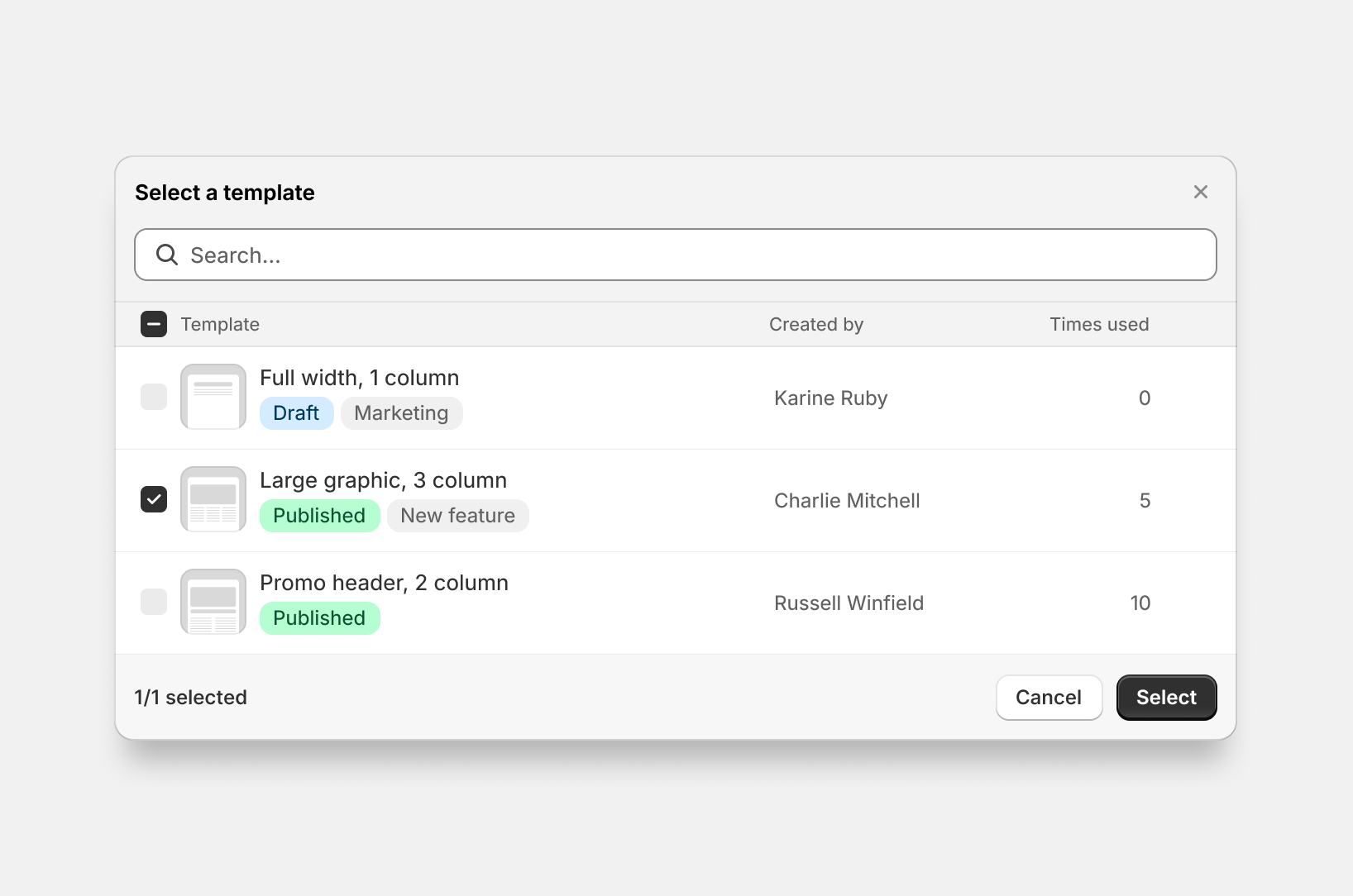
Select email templates. This example builds a custom picker for email templates with multiple columns and status badges. It defines column headers, populates items with searchable data fields, adds visual status indicators, and handles the selection promise. Use this pattern for app-specific resources like templates, product reviews, or subscription options.
js
const picker = await shopify.picker({
  heading: 'Select a template',
  multiple: false,
  headers: [
    {content: 'Templates'},
    {content: 'Created by'},
    {content: 'Times used', type: 'number'},
  ],
  items: [
    {
      id: '1',
      heading: 'Full width, 1 column',
      data: ['Karine Ruby', '0'],
      badges: [{content: 'Draft', tone: 'info'}, {content: 'Marketing'}],
    },
    {
      id: '2',
      heading: 'Large graphic, 3 column',
      data: ['Charlie Mitchell', '5'],
      badges: [
        {content: 'Published', tone: 'success'},
        {content: 'New feature'},
      ],
      selected: true,
    },
    {
      id: '3',
      heading: 'Promo header, 2 column',
      data: ['Russell Winfield', '10'],
      badges: [{content: 'Published', tone: 'success'}],
    },
  ],
});

const selected = await picker.selected;
Limit selection count
Description
Limit selection count. This example limits selection to a maximum number of items by setting `multiple: 2` in the picker options. Use this when your feature has hard constraints, such as A/B test variants needing exactly two options, comparison views with fixed slots, or integration mappings that support a specific connection count.
js
const picker = await shopify.picker({
  heading: 'Select up to 2 templates',
  multiple: 2,
  headers: [{content: 'Template'}],
  items: [
    {
      id: '1',
      heading: 'Welcome email',
    },
    {
      id: '2',
      heading: 'Order confirmation',
    },
    {
      id: '3',
      heading: 'Shipping notification',
    },
  ],
});

const selected = await picker.selected;
Select unlimited items
Description
Select unlimited items. This example allows unlimited selection by setting `multiple: true` without a numeric limit. Use this for bulk operations, mass notification sending, export tools, or tag management where selection quantity depends on merchant needs without artificial constraints.
js
const picker = await shopify.picker({
  heading: 'Select templates',
  multiple: true,
  headers: [{content: 'Template'}],
  items: [
    {
      id: '1',
      heading: 'Welcome email',
    },
    {
      id: '2',
      heading: 'Order confirmation',
    },
    {
      id: '3',
      heading: 'Shipping notification',
    },
  ],
});

const selected = await picker.selected;
Preselect items
Description
Preselect items. This example opens the picker with items already selected by setting `selected: true` on individual items. Use this for edit workflows where you need to show what resources are already associated with a configuration. Merchants can modify the selection before confirming.
js
const picker = await shopify.picker({
  heading: 'Select templates',
  items: [
    {
      id: '1',
      heading: 'Welcome email',
      selected: true,
    },
    {
      id: '2',
      heading: 'Order confirmation',
    },
    {
      id: '3',
      heading: 'Shipping notification',
      selected: true,
    },
  ],
});

const selected = await picker.selected;
Disable specific items
Description
Disable specific items. This example disables specific picker items to prevent selection while keeping them visible for context. Set `disabled: true` on individual items to mark them as non-selectable. Use this for showing all available options while preventing selection of incompatible resources or deprecated features.
js
const picker = await shopify.picker({
  heading: 'Select a template',
  items: [
    {
      id: '1',
      heading: 'Welcome email',
      disabled: true,
    },
    {
      id: '2',
      heading: 'Order confirmation',
    },
    {
      id: '3',
      heading: 'Shipping notification',
    },
  ],
});

const selected = await picker.selected;
Use GraphQL data
Description
Use GraphQL data. This example populates the picker with data from the GraphQL Admin API. It fetches order data, maps results to picker items with badges showing fulfillment and payment status, and opens the picker with the returned data. Use this pattern for Shopify data not available through the Resource Picker API, such as orders, draft orders, or fulfillments.
js
const response = await fetch('shopify:admin/api/graphql.json', {
  method: 'POST',
  body: JSON.stringify({
    query: `
      query GetOrders($first: Int!) {
        orders(first: $first) {
          edges {
            node {
              id
              name
              customer {
                displayName
              }
              originalTotalPriceSet {
                shopMoney {
                  amount
                }
              }
              displayFulfillmentStatus
              displayFinancialStatus
            }
          }
        }
      }
    `,
    variables: {first: 10},
  }),
});

const {data} = await response.json();
const orders = data.orders.edges;

const picker = await shopify.picker({
  heading: 'Select orders',
  multiple: true,
  headers: [
    {content: 'Order'},
    {content: 'Customer'},
    {content: 'Total', type: 'number'},
  ],
  items: orders.map(({node: order}) => ({
    id: order.id,
    heading: order.name,
    data: [order.customer.displayName, `$${order.originalTotalPriceSet.shopMoney.amount}`],
    badges: [
      {
        content: order.displayFulfillmentStatus,
        tone: order.displayFulfillmentStatus === 'FULFILLED' ? 'success' : 'warning',
        progress: order.displayFulfillmentStatus === 'FULFILLED' ? 'complete' : 'incomplete',
      },
      {
        content: order.displayFinancialStatus,
        tone: order.displayFinancialStatus === 'PAID' ? 'success' : 'warning',
        progress: order.displayFinancialStatus === 'PAID' ? 'complete' : 'incomplete',
      },
    ],
  })),
});

const selected = await picker.selected;