Intents API
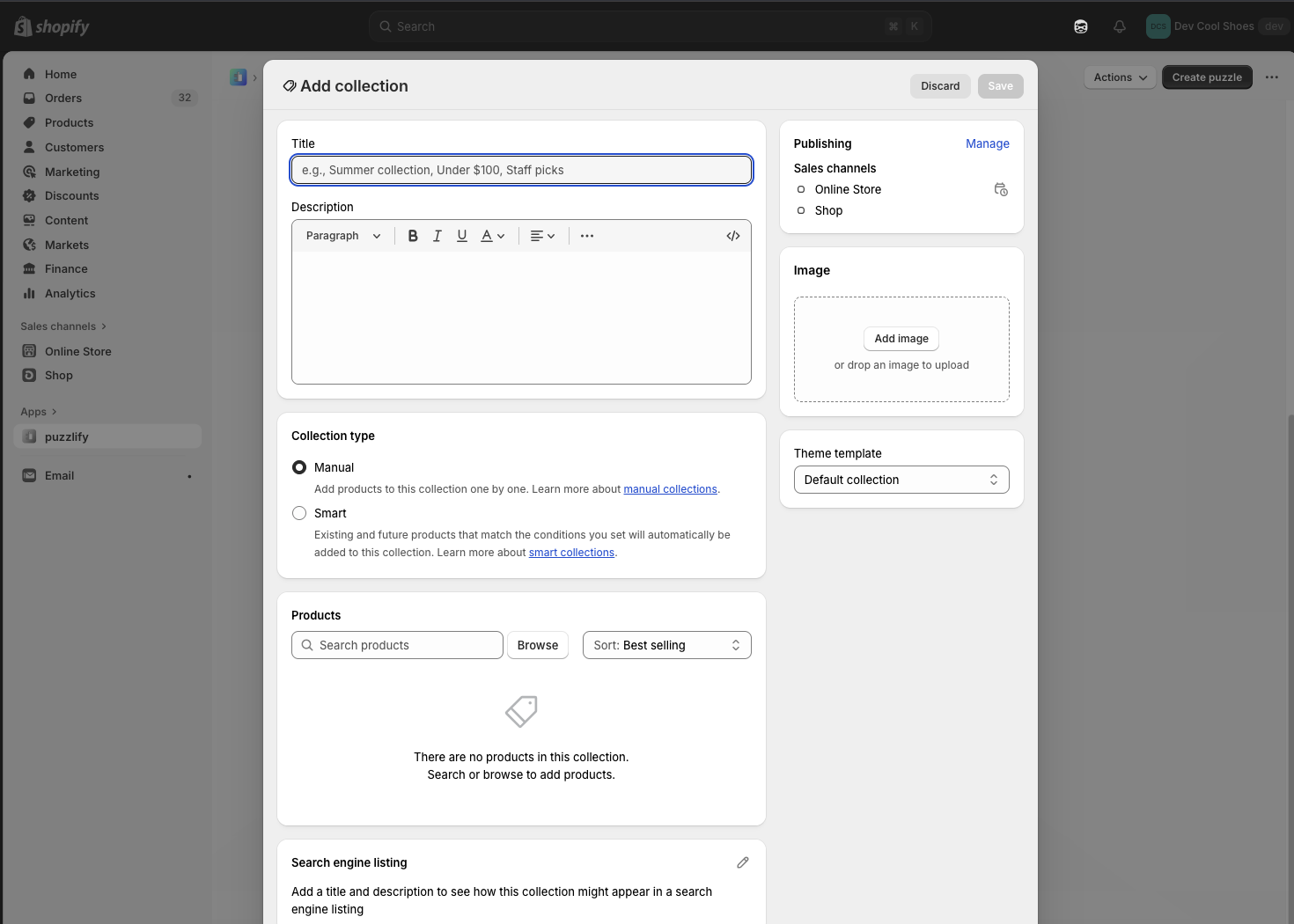
The Intents API launches Shopify's native admin interfaces for creating and editing resources. When your extension calls an intent, merchants complete their changes using the standard admin UI, and your extension receives the result. This means you don't need to build custom forms.
Use this API to build workflows like adding products to collections from bulk actions, creating multiple related resources in sequence (like a product, collection, and discount for a promotion), opening specific resources for editing from custom buttons, or launching discount creation with pre-selected types.
If you do render a form on an intent screen, the screen can close and tear down the runtime before async saves settle. Return a promise from your submit handler and call event.waitUntil(promise). See Handle async submission on the Form reference.
Anchor to Use casesUse cases
- Resource creation: Launch Shopify's native creation forms for products, collections, discounts, and other resources directly from your app home page.
- Resource editing: Open existing resources for editing without building custom forms.
- Multi-step workflows: Chain intent invocations to create related resources in sequence, like a product, collection, and discount for a promotion.
- Settings management: Navigate merchants to specific Shopify settings pages like store details, order processing, or gift card expiration.
Anchor to invoke methodinvoke method
The invoke method launches a Shopify admin workflow for creating or editing resources. The method returns a promise that resolves to an activity handle you can await to get the workflow result.
The method accepts either:
- String query:
${action}:${type},${value}with optional second parameter () - Object: Properties for
action,type,value, anddata
IntentQueryOptions parameters
Optional parameters for the invoke method when using the string query format:
value(string): The resource identifier for edit operations (for example,). Required when editing existing resources. Omit for create operations.data({ [key: string]: unknown }): Additional context required by specific resource types. For example, discounts require a type, variants require a product ID, and metaobjects require a definition type.
Supported resources
The following tables show which resource types you can create or edit, and what values you need to pass for value and data for each operation.
Article
Articles are blog posts published on the Online Store. Use this to create or edit articles for merchant blogs.
| Action | Type | Value | Data |
|---|---|---|---|
create | | — | — |
edit | | | — |
Catalog
Catalogs are product groupings that organize products for different markets or channels. Use this to create or edit catalogs for B2B or multi-market selling.
| Action | Type | Value | Data |
|---|---|---|---|
create | | — | — |
edit | | | — |
Collection
Collections are groups of products organized manually or by automated rules. Use this to create or edit product collections.
| Action | Type | Value | Data |
|---|---|---|---|
create | | — | — |
edit | | | — |
Customer
Customers are profiles with contact information, order history, and metadata. Use this to create or edit customer accounts.
| Action | Type | Value | Data |
|---|---|---|---|
create | | — | — |
edit | | | — |
Delivery profile
Delivery profiles define shipping rates and rules for products across locations and zones. Use this to create or edit shipping configurations for different product groups.
| Action | Type | Value | Data |
|---|---|---|---|
create | | — | — |
edit | | | — |
Discount
Discounts are price reductions applied to products, orders, or shipping. Use this to create or edit discount codes and automatic discounts. Creating discounts requires specifying a discount type.
| Action | Type | Value | Data |
|---|---|---|---|
create | | — | { type: 'amount-off-product' | 'amount-off-order' | 'buy-x-get-y' | 'free-shipping' } |
edit | | | — |
For edit intents, pass a discount GID. Use as the canonical value. If you use a method-specific GID, match it to the discount method: use for discount codes and for automatic discounts.
For edit intents, pass a discount GID. Use as the canonical value. If you use a method-specific GID, match it to the discount method: use for discount codes and for automatic discounts.
Note: For edit intents, pass a discount GID. Use <code><span class="PreventFireFoxApplyingGapToWBR">gid://shopify<wbr/>/Discount<wbr/>Node<wbr/>/{id}</span></code> as the canonical value. If you use a method-specific GID, match it to the discount method: use <code><span class="PreventFireFoxApplyingGapToWBR">gid://shopify<wbr/>/Discount<wbr/>Code<wbr/>Node<wbr/>/{id}</span></code> for discount codes and <code><span class="PreventFireFoxApplyingGapToWBR">gid://shopify<wbr/>/Discount<wbr/>Automatic<wbr/>Node<wbr/>/{id}</span></code> for automatic discounts.
File
Files are images, videos, 3D models, and other media uploaded to the store. Use the pick action to let merchants choose existing files. The workflow resolves with the selected file IDs in response.data.ids.
| Action | Type | Value | Data |
|---|---|---|---|
pick | | — | |
The data options are all optional: restricts the picker to specific file types, allows selecting more than one file, and / control which files are pre-selected when the picker opens.
Location
Locations are physical or virtual places where merchants store inventory and fulfill orders. Use this to create or edit locations for managing stock and fulfillment.
| Action | Type | Value | Data |
|---|---|---|---|
create | | — | — |
edit | | | — |
Market
Markets are geographic regions with customized pricing, languages, and domains. Use this to create or edit markets for international selling.
| Action | Type | Value | Data |
|---|---|---|---|
create | | — | — |
edit | | | — |
Menu
Menus are navigation structures for the Online Store. Use this to create or edit menu structures and links.
| Action | Type | Value | Data |
|---|---|---|---|
create | | — | — |
edit | | | — |
Metafield definition
Metafield definitions are schemas that define custom data fields for resources. Use this to create or edit metafield definitions that merchants can use to add structured data to products, customers, and other resources.
| Action | Type | Value | Data |
|---|---|---|---|
create | | — | |
edit | | | |
Metaobject
Metaobjects are custom structured data entries based on metaobject definitions. Use this to create or edit metaobject instances that store complex custom data. Requires a definition type.
| Action | Type | Value | Data |
|---|---|---|---|
create | | — | { type: 'shopify--color-pattern' } |
edit | | | { type: 'shopify--color-pattern' } |
Metaobject definition
Metaobject definitions are schemas that define the structure for metaobjects. Use this to create or edit metaobject definitions that determine the fields and data types for custom structured data.
| Action | Type | Value | Data |
|---|---|---|---|
create | | — | — |
edit | | — | |
Page
Pages are static content pages for the Online Store. Use this to create or edit pages like About Us, Contact, or custom informational pages.
| Action | Type | Value | Data |
|---|---|---|---|
create | | — | — |
edit | | | — |
Product
Products are items sold in the store with pricing, inventory, and variants. Use this to create or edit products.
| Action | Type | Value | Data |
|---|---|---|---|
create | | — | — |
edit | | | — |
Product variant
Product variants are specific combinations of product options like size and color. Use this to create or edit product variants. Creating variants requires a parent product ID.
| Action | Type | Value | Data |
|---|---|---|---|
create | | — | |
edit | | | |
Note: When editing products with variants, query the <a href="/docs/api/admin-graphql/latest/objects/Product#field-Product.fields.hasOnlyDefaultVariant"><code><span class="PreventFireFoxApplyingGapToWBR">product.has<wbr/>Only<wbr/>Default<wbr/>Variant</span></code></a> field first. If <code>true</code>, then use the <code><span class="PreventFireFoxApplyingGapToWBR">shopify<wbr/>/Product</span></code> edit intent. If <code>false</code>, then use the <code><span class="PreventFireFoxApplyingGapToWBR">shopify<wbr/>/Product<wbr/>Variant</span></code> edit intent for specific variants.
Settings
Settings are the configuration options for the store. Use this to invoke and edit settings.
| Action | Type | Value | Data |
|---|---|---|---|
edit | | — | — |
edit | | — | — |
edit | | — | — |
edit | | — | — |
edit | | — | — |
edit | | — | — |
edit | | — | — |
edit | | — | — |
edit | | — | — |
IntentQuery
A structured intent specification defining what workflow to launch. Use this format when you prefer object syntax over string query format.
- action
The operation to perform: `'create'` for new resources or `'edit'` for existing ones.
IntentAction - data
Additional context data required by specific intent types. For example, discount creation requires a discount type, variant creation requires a parent product ID, and [metaobject](/docs/apps/build/custom-data/metaobjects) creation requires a definition type.
{ [key: string]: unknown; } - type
The type of resource to create or edit (for example, `'shopify/Product'`).
IntentType - value
The resource identifier for edit operations (for example, `'gid://shopify/Product/123'`). Required when editing existing resources. Omit this for create operations.
string
IntentAction
The type of operation to perform: creating a new resource, editing an existing one, or picking existing resources.
'create' | 'edit' | 'pick'IntentType
The types of Shopify resources that support intent-based creation and editing workflows.
'shopify/Article' | 'shopify/Catalog' | 'shopify/Collection' | 'shopify/Customer' | 'shopify/Discount' | 'shopify/File' | 'shopify/Location' | 'shopify/Market' | 'shopify/Menu' | 'shopify/MetafieldDefinition' | 'shopify/Metaobject' | 'shopify/MetaobjectDefinition' | 'shopify/Page' | 'shopify/Product' | 'shopify/ProductVariant'IntentActivity
A handle for tracking an in-progress intent workflow.
- complete
A Promise that resolves when the workflow completes. Await this to get the outcome and handle success, failure, or cancellation appropriately.
Promise<IntentResponse>
IntentResponse
The result of an intent workflow. Check the `code` property to determine the outcome: `'ok'` for success, `'error'` for failure, or `'closed'` if the merchant cancelled.
SuccessIntentResponse | ErrorIntentResponse | ClosedIntentResponseSuccessIntentResponse
The response returned when a merchant successfully completes the workflow. Use this to access the created or updated resource data.
- code
Indicates successful completion. When `'ok'`, the merchant completed the workflow and the resource was created or updated.
'ok' - data
Additional data returned by the workflow, such as the created or updated resource information with IDs and properties.
{ [key: string]: unknown; }
ErrorIntentResponse
The response returned when the workflow fails due to validation errors or other issues. Use this to display error messages and help merchants fix problems.
- code
Indicates the workflow failed. When `'error'`, the workflow encountered validation errors or other issues that prevented completion.
'error' - issues
Specific validation issues or field errors. Present when validation fails on particular fields, allowing you to show targeted error messages.
Issue[] - message
A general error message describing what went wrong. Use this to display feedback when specific field errors aren't available.
string
Issue
A structured issue describing a validation or workflow error.
- code
A machine-readable error code for this issue. Use this for programmatic error handling or logging.
string - message
A description of what's wrong with this field. Display this to help merchants understand how to fix the error.
string - path
The path to the field that has an error (for example, `['product', 'title']`). Use this to identify which field caused the validation failure.
string[]
ClosedIntentResponse
The response returned when a merchant closes or cancels the workflow without completing it. Check for this response to handle cancellation gracefully in your extension.
- code
Indicates the workflow was closed without completion. When `'closed'`, the merchant exited the workflow before finishing.
'closed'
IntentQueryOptions
Additional parameters for intent invocation when using the string query format. Use these options to provide resource IDs for editing or pass required context data for resource creation.
- data
Additional context data required by specific intent types. For example, discount creation requires a discount type, variant creation requires a parent product ID, and [metaobject](/docs/apps/build/custom-data/metaobjects) creation requires a definition type.
{ [key: string]: unknown; } - value
The resource identifier for edit operations (for example, `'gid://shopify/Product/123'`). Required when editing existing resources. Omit this for create operations.
string
Anchor to IntentResponseIntent
The result returned when an intent workflow completes. Check the code property to determine the outcome:
'ok': The merchant completed the workflow successfully.'error': The workflow failed due to validation or other errors.'closed': The merchant cancelled without completing.
SuccessIntentResponse | ErrorIntentResponse | ClosedIntentResponseSuccessIntentResponse | ErrorIntentResponse | ClosedIntentResponseClosedIntentResponse
- Anchor to codecodecode'closed''closed'
Indicates the workflow was closed without completion. When
'closed', the merchant exited the workflow before finishing.
ErrorIntentResponse
- Anchor to codecodecode'error''error'
Indicates the workflow failed. When
'error', the workflow encountered validation errors or other issues that prevented completion.- Anchor to issuesissuesissuesIssue[]Issue[]
Specific validation issues or field errors. Present when validation fails on particular fields, allowing you to show targeted error messages.
- Anchor to messagemessagemessagestringstring
A general error message describing what went wrong. Use this to display feedback when specific field errors aren't available.
SuccessIntentResponse
- Anchor to codecodecode'ok''ok'
Indicates successful completion. When
'ok', the merchant completed the workflow and the resource was created or updated.- Anchor to datadatadata{ [key: string]: unknown; }{ [key: string]: unknown; }
Additional data returned by the workflow, such as the created or updated resource information with IDs and properties.
jsx
Preview
Examples
Description
Launch the article creation workflow from a button click. This example uses `shopify.intents.invoke()` to open the article editor, awaits the workflow completion, and displays success or cancellation feedback based on the response code.
jsx
import {render} from 'preact';
import {useState} from 'preact/hooks';

export default async () => {
  render(<Extension />, document.body);
};

function Extension() {
  const [result, setResult] = useState(null);
  const [creating, setCreating] = useState(false);

  const handleCreate = async () => {
    setCreating(true);

    const activity = await shopify.intents.invoke('create:shopify/Article');
    const response = await activity.complete;

    setResult(response);
    setCreating(false);
  };

  return (
    <s-page heading="Create Article">
      <s-button onClick={handleCreate} disabled={creating}>
        {creating ? 'Creating...' : 'Launch Article Creator'}
      </s-button>
      {result?.code === 'ok' && (
        <s-banner tone="success">Article created successfully!</s-banner>
      )}
      {result?.code === 'closed' && (
        <s-text>Creation cancelled</s-text>
      )}
    </s-page>
  );
}
Description
Open the article editor for a selected blog post. This example retrieves the article GID from extension context, passes it to the edit intent, and handles both successful updates and cancellations.
jsx
import {render} from 'preact';
import {useState} from 'preact/hooks';

export default async () => {
  render(<Extension />, document.body);
};

function Extension() {
  const {data} = shopify;
  const [result, setResult] = useState(null);
  const [loading, setLoading] = useState(false);

  const resourceId = data.selected[0]?.id || 'gid://shopify/Article/123456789';

  const handleAction = async () => {
    setLoading(true);

    const activity = await shopify.intents.invoke('edit:shopify/Article', {
      value: resourceId,
    });

    const response = await activity.complete;
    setResult(response);
    setLoading(false);
  };

  return (
    <s-page heading="Edit Article">
      <s-text>Editing: {resourceId}</s-text>
      <s-button onClick={handleAction} disabled={loading}>
        {loading ? 'Opening...' : 'Edit Article'}
      </s-button>
      {result?.code === 'ok' && (
        <s-banner tone="success">Article updated!</s-banner>
      )}
      {result?.code === 'closed' && (
        <s-text>Edit cancelled</s-text>
      )}
    </s-page>
  );
}
Description
Launch the catalog creation workflow to set up B2B customer groups or market-specific product collections. This example invokes the create intent, manages loading state, and displays success or cancellation feedback.
jsx
import {render} from 'preact';
import {useState} from 'preact/hooks';

export default async () => {
  render(<Extension />, document.body);
};

function Extension() {
  const [result, setResult] = useState(null);
  const [loading, setLoading] = useState(false);

  const handleAction = async () => {
    setLoading(true);

    const activity = await shopify.intents.invoke('create:shopify/Catalog');
    const response = await activity.complete;

    setResult(response);
    setLoading(false);
  };

  return (
    <s-page heading="Create Catalog">
      <s-button onClick={handleAction} disabled={loading}>
        {loading ? 'Creating...' : 'Launch Catalog Creator'}
      </s-button>
      {result?.code === 'ok' && (
        <s-banner tone="success">Catalog created successfully!</s-banner>
      )}
      {result?.code === 'closed' && (
        <s-text>Creation cancelled</s-text>
      )}
    </s-page>
  );
}
Description
Open the catalog editor to adjust product assignments or market settings. This example retrieves the catalog GID from extension context, invokes the edit intent, and handles the completion response.
jsx
import {render} from 'preact';
import {useState} from 'preact/hooks';

export default async () => {
  render(<Extension />, document.body);
};

function Extension() {
  const {data} = shopify;
  const [result, setResult] = useState(null);
  const [loading, setLoading] = useState(false);

  const resourceId = data.selected[0]?.id || 'gid://shopify/Catalog/123456789';

  const handleAction = async () => {
    setLoading(true);

    const activity = await shopify.intents.invoke('edit:shopify/Catalog', {
      value: resourceId,
    });

    const response = await activity.complete;
    setResult(response);
    setLoading(false);
  };

  return (
    <s-page heading="Edit Catalog">
      <s-text>Editing: {resourceId}</s-text>
      <s-button onClick={handleAction} disabled={loading}>
        {loading ? 'Opening...' : 'Edit Catalog'}
      </s-button>
      {result?.code === 'ok' && (
        <s-banner tone="success">Catalog updated!</s-banner>
      )}
      {result?.code === 'closed' && (
        <s-text>Edit cancelled</s-text>
      )}
    </s-page>
  );
}
Description
Launch the collection creation workflow for organizing products on the storefront. This example invokes the create intent, tracks loading state, and displays feedback when the workflow completes.
jsx
import {render} from 'preact';
import {useState} from 'preact/hooks';

export default async () => {
  render(<Extension />, document.body);
};

function Extension() {
  const [result, setResult] = useState(null);
  const [loading, setLoading] = useState(false);

  const handleAction = async () => {
    setLoading(true);

    const activity = await shopify.intents.invoke('create:shopify/Collection');
    const response = await activity.complete;

    setResult(response);
    setLoading(false);
  };

  return (
    <s-page heading="Create Collection">
      <s-button onClick={handleAction} disabled={loading}>
        {loading ? 'Creating...' : 'Launch Collection Creator'}
      </s-button>
      {result?.code === 'ok' && (
        <s-banner tone="success">Collection created successfully!</s-banner>
      )}
      {result?.code === 'closed' && (
        <s-text>Creation cancelled</s-text>
      )}
    </s-page>
  );
}
Description
Open the collection editor to modify products or automation rules. This example retrieves the collection GID, invokes the edit intent, and handles the completion response.
jsx
import {render} from 'preact';
import {useState} from 'preact/hooks';

export default async () => {
  render(<Extension />, document.body);
};

function Extension() {
  const {data} = shopify;
  const [result, setResult] = useState(null);
  const [loading, setLoading] = useState(false);

  const resourceId = data.selected[0]?.id || 'gid://shopify/Collection/123456789';

  const handleAction = async () => {
    setLoading(true);

    const activity = await shopify.intents.invoke('edit:shopify/Collection', {
      value: resourceId,
    });

    const response = await activity.complete;
    setResult(response);
    setLoading(false);
  };

  return (
    <s-page heading="Edit Collection">
      <s-text>Editing: {resourceId}</s-text>
      <s-button onClick={handleAction} disabled={loading}>
        {loading ? 'Opening...' : 'Edit Collection'}
      </s-button>
      {result?.code === 'ok' && (
        <s-banner tone="success">Collection updated!</s-banner>
      )}
      {result?.code === 'closed' && (
        <s-text>Edit cancelled</s-text>
      )}
    </s-page>
  );
}
Description
Launch the customer creation form to add a new profile with contact details and addresses. This example invokes the create intent, awaits completion, and displays feedback based on the result code.
jsx
import {render} from 'preact';
import {useState} from 'preact/hooks';

export default async () => {
  render(<Extension />, document.body);
};

function Extension() {
  const [result, setResult] = useState(null);
  const [loading, setLoading] = useState(false);

  const handleAction = async () => {
    setLoading(true);

    const activity = await shopify.intents.invoke('create:shopify/Customer');
    const response = await activity.complete;

    setResult(response);
    setLoading(false);
  };

  return (
    <s-page heading="Create Customer">
      <s-button onClick={handleAction} disabled={loading}>
        {loading ? 'Creating...' : 'Launch Customer Creator'}
      </s-button>
      {result?.code === 'ok' && (
        <s-banner tone="success">Customer created successfully!</s-banner>
      )}
      {result?.code === 'closed' && (
        <s-text>Creation cancelled</s-text>
      )}
    </s-page>
  );
}
Description
Open the customer editor to update contact information or tags. This example retrieves the customer GID from extension context, invokes the edit intent, and handles the completion response.
jsx
import {render} from 'preact';
import {useState} from 'preact/hooks';

export default async () => {
  render(<Extension />, document.body);
};

function Extension() {
  const {data} = shopify;
  const [result, setResult] = useState(null);
  const [loading, setLoading] = useState(false);

  const resourceId = data.selected[0]?.id || 'gid://shopify/Customer/123456789';

  const handleAction = async () => {
    setLoading(true);

    const activity = await shopify.intents.invoke('edit:shopify/Customer', {
      value: resourceId,
    });

    const response = await activity.complete;
    setResult(response);
    setLoading(false);
  };

  return (
    <s-page heading="Edit Customer">
      <s-text>Editing: {resourceId}</s-text>
      <s-button onClick={handleAction} disabled={loading}>
        {loading ? 'Opening...' : 'Edit Customer'}
      </s-button>
      {result?.code === 'ok' && (
        <s-banner tone="success">Customer updated!</s-banner>
      )}
      {result?.code === 'closed' && (
        <s-text>Edit cancelled</s-text>
      )}
    </s-page>
  );
}
Description
Launch the discount creation form for setting up promotional campaigns. This example invokes the create intent, manages loading state, and displays feedback on completion.
jsx
import {render} from 'preact';
import {useState} from 'preact/hooks';

export default async () => {
  render(<Extension />, document.body);
};

function Extension() {
  const [result, setResult] = useState(null);
  const [loading, setLoading] = useState(false);

  const handleAction = async () => {
    setLoading(true);

    const activity = await shopify.intents.invoke('create:shopify/Discount');
    const response = await activity.complete;

    setResult(response);
    setLoading(false);
  };

  return (
    <s-page heading="Create Discount">
      <s-button onClick={handleAction} disabled={loading}>
        {loading ? 'Creating...' : 'Launch Discount Creator'}
      </s-button>
      {result?.code === 'ok' && (
        <s-banner tone="success">Discount created successfully!</s-banner>
      )}
      {result?.code === 'closed' && (
        <s-text>Creation cancelled</s-text>
      )}
    </s-page>
  );
}
Description
Open the discount editor to adjust values or extend active dates. This example retrieves the discount GID from extension context, invokes the edit intent, and handles the completion response.
jsx
import {render} from 'preact';
import {useState} from 'preact/hooks';

export default async () => {
  render(<Extension />, document.body);
};

function Extension() {
  const {data} = shopify;
  const [result, setResult] = useState(null);
  const [loading, setLoading] = useState(false);

  const resourceId = data.selected[0]?.id || 'gid://shopify/DiscountNode/123456789';

  const handleAction = async () => {
    setLoading(true);

    const activity = await shopify.intents.invoke('edit:shopify/Discount', {
      value: resourceId,
    });

    const response = await activity.complete;
    setResult(response);
    setLoading(false);
  };

  return (
    <s-page heading="Edit Discount">
      <s-text>Editing: {resourceId}</s-text>
      <s-button onClick={handleAction} disabled={loading}>
        {loading ? 'Opening...' : 'Edit Discount'}
      </s-button>
      {result?.code === 'ok' && (
        <s-banner tone="success">Discount updated!</s-banner>
      )}
      {result?.code === 'closed' && (
        <s-text>Edit cancelled</s-text>
      )}
    </s-page>
  );
}
Description
Open the file picker so the merchant can choose existing files from the store. Use the `data` options to filter by media type, allow multiple selection, or pre-select files. The workflow resolves with the selected file IDs in `response.data.ids`.
jsx
import {render} from 'preact';
import {useState} from 'preact/hooks';

export default async () => {
  render(<Extension />, document.body);
};

function Extension() {
  const [ids, setIds] = useState<string[]>([]);
  const [loading, setLoading] = useState(false);

  const handlePick = async () => {
    setLoading(true);

    const activity = await shopify.intents.invoke('pick:shopify/File', {
      data: {mediaTypes: ['MediaImage'], multiSelect: true},
    });
    const response = await activity.complete;

    if (response.code === 'ok') {
      setIds(response.data.ids);
    }
    setLoading(false);
  };

  return (
    <s-page heading="Pick files">
      <s-button onClick={handlePick} disabled={loading}>
        {loading ? 'Opening...' : 'Open file picker'}
      </s-button>
      {ids.length > 0 && <s-text>{ids.length} file(s) selected</s-text>}
    </s-page>
  );
}
Description
Launch the market creation workflow for international selling with region-specific configurations. This example invokes the create intent, manages loading state, and displays feedback on completion.
jsx
import {render} from 'preact';
import {useState} from 'preact/hooks';

export default async () => {
  render(<Extension />, document.body);
};

function Extension() {
  const [result, setResult] = useState(null);
  const [loading, setLoading] = useState(false);

  const handleAction = async () => {
    setLoading(true);

    const activity = await shopify.intents.invoke('create:shopify/Market');
    const response = await activity.complete;

    setResult(response);
    setLoading(false);
  };

  return (
    <s-page heading="Create Market">
      <s-button onClick={handleAction} disabled={loading}>
        {loading ? 'Creating...' : 'Launch Market Creator'}
      </s-button>
      {result?.code === 'ok' && (
        <s-banner tone="success">Market created successfully!</s-banner>
      )}
      {result?.code === 'closed' && (
        <s-text>Creation cancelled</s-text>
      )}
    </s-page>
  );
}
Description
Open the market editor to adjust geographic coverage or pricing strategies. This example retrieves the market GID from extension context, invokes the edit intent, and handles the completion response.
jsx
import {render} from 'preact';
import {useState} from 'preact/hooks';

export default async () => {
  render(<Extension />, document.body);
};

function Extension() {
  const {data} = shopify;
  const [result, setResult] = useState(null);
  const [loading, setLoading] = useState(false);

  const resourceId = data.selected[0]?.id || 'gid://shopify/Market/123456789';

  const handleAction = async () => {
    setLoading(true);

    const activity = await shopify.intents.invoke('edit:shopify/Market', {
      value: resourceId,
    });

    const response = await activity.complete;
    setResult(response);
    setLoading(false);
  };

  return (
    <s-page heading="Edit Market">
      <s-text>Editing: {resourceId}</s-text>
      <s-button onClick={handleAction} disabled={loading}>
        {loading ? 'Opening...' : 'Edit Market'}
      </s-button>
      {result?.code === 'ok' && (
        <s-banner tone="success">Market updated!</s-banner>
      )}
      {result?.code === 'closed' && (
        <s-text>Edit cancelled</s-text>
      )}
    </s-page>
  );
}
Description
Launch the menu creation workflow for storefront navigation headers or footers. This example invokes the create intent, tracks loading state, and displays feedback on completion.
jsx
import {render} from 'preact';
import {useState} from 'preact/hooks';

export default async () => {
  render(<Extension />, document.body);
};

function Extension() {
  const [result, setResult] = useState(null);
  const [loading, setLoading] = useState(false);

  const handleAction = async () => {
    setLoading(true);

    const activity = await shopify.intents.invoke('create:shopify/Menu');
    const response = await activity.complete;

    setResult(response);
    setLoading(false);
  };

  return (
    <s-page heading="Create Menu">
      <s-button onClick={handleAction} disabled={loading}>
        {loading ? 'Creating...' : 'Launch Menu Creator'}
      </s-button>
      {result?.code === 'ok' && (
        <s-banner tone="success">Menu created successfully!</s-banner>
      )}
      {result?.code === 'closed' && (
        <s-text>Creation cancelled</s-text>
      )}
    </s-page>
  );
}
Description
Open the menu editor to reorganize navigation structure or update links. This example retrieves the menu GID from extension context, invokes the edit intent, and handles the completion response.
jsx
import {render} from 'preact';
import {useState} from 'preact/hooks';

export default async () => {
  render(<Extension />, document.body);
};

function Extension() {
  const {data} = shopify;
  const [result, setResult] = useState(null);
  const [loading, setLoading] = useState(false);

  const resourceId = data.selected[0]?.id || 'gid://shopify/Menu/123456789';

  const handleAction = async () => {
    setLoading(true);

    const activity = await shopify.intents.invoke('edit:shopify/Menu', {
      value: resourceId,
    });

    const response = await activity.complete;
    setResult(response);
    setLoading(false);
  };

  return (
    <s-page heading="Edit Menu">
      <s-text>Editing: {resourceId}</s-text>
      <s-button onClick={handleAction} disabled={loading}>
        {loading ? 'Opening...' : 'Edit Menu'}
      </s-button>
      {result?.code === 'ok' && (
        <s-banner tone="success">Menu updated!</s-banner>
      )}
      {result?.code === 'closed' && (
        <s-text>Edit cancelled</s-text>
      )}
    </s-page>
  );
}
Description
Launch the metafield definition creator to add custom data fields to products, orders, or customers. This example invokes the create intent, manages loading state, and displays feedback on completion.
jsx
import {render} from 'preact';
import {useState} from 'preact/hooks';

export default async () => {
  render(<Extension />, document.body);
};

function Extension() {
  const [result, setResult] = useState(null);
  const [loading, setLoading] = useState(false);

  const handleAction = async () => {
    setLoading(true);

    const activity = await shopify.intents.invoke('create:shopify/MetafieldDefinition');
    const response = await activity.complete;

    setResult(response);
    setLoading(false);
  };

  return (
    <s-page heading="Create Metafield Definition">
      <s-button onClick={handleAction} disabled={loading}>
        {loading ? 'Creating...' : 'Launch Metafield Definition Creator'}
      </s-button>
      {result?.code === 'ok' && (
        <s-banner tone="success">Metafield Definition created successfully!</s-banner>
      )}
      {result?.code === 'closed' && (
        <s-text>Creation cancelled</s-text>
      )}
    </s-page>
  );
}
Description
Open the metafield definition editor to modify validation rules or field descriptions. This example retrieves the definition GID from extension context, invokes the edit intent, and handles the completion response.
jsx
import {render} from 'preact';
import {useState} from 'preact/hooks';

export default async () => {
  render(<Extension />, document.body);
};

function Extension() {
  const {data} = shopify;
  const [result, setResult] = useState(null);
  const [loading, setLoading] = useState(false);

  const resourceId = data.selected[0]?.id || 'gid://shopify/MetafieldDefinition/123456789';

  const handleAction = async () => {
    setLoading(true);

    const activity = await shopify.intents.invoke('edit:shopify/MetafieldDefinition', {
      value: resourceId,
    });

    const response = await activity.complete;
    setResult(response);
    setLoading(false);
  };

  return (
    <s-page heading="Edit Metafield Definition">
      <s-text>Editing: {resourceId}</s-text>
      <s-button onClick={handleAction} disabled={loading}>
        {loading ? 'Opening...' : 'Edit Metafield Definition'}
      </s-button>
      {result?.code === 'ok' && (
        <s-banner tone="success">Metafield Definition updated!</s-banner>
      )}
      {result?.code === 'closed' && (
        <s-text>Edit cancelled</s-text>
      )}
    </s-page>
  );
}
Description
Launch the metaobject creator to add a new entry to a custom content type. This example invokes the create intent, tracks loading state, and displays feedback on completion.
jsx
import {render} from 'preact';
import {useState} from 'preact/hooks';

export default async () => {
  render(<Extension />, document.body);
};

function Extension() {
  const [result, setResult] = useState(null);
  const [loading, setLoading] = useState(false);

  const handleAction = async () => {
    setLoading(true);

    const activity = await shopify.intents.invoke('create:shopify/Metaobject');
    const response = await activity.complete;

    setResult(response);
    setLoading(false);
  };

  return (
    <s-page heading="Create Metaobject">
      <s-button onClick={handleAction} disabled={loading}>
        {loading ? 'Creating...' : 'Launch Metaobject Creator'}
      </s-button>
      {result?.code === 'ok' && (
        <s-banner tone="success">Metaobject created successfully!</s-banner>
      )}
      {result?.code === 'closed' && (
        <s-text>Creation cancelled</s-text>
      )}
    </s-page>
  );
}
Description
Open the metaobject editor to modify field values or resource references. This example retrieves the metaobject GID from extension context, invokes the edit intent, and handles the completion response.
jsx
import {render} from 'preact';
import {useState} from 'preact/hooks';

export default async () => {
  render(<Extension />, document.body);
};

function Extension() {
  const {data} = shopify;
  const [result, setResult] = useState(null);
  const [loading, setLoading] = useState(false);

  const resourceId = data.selected[0]?.id || 'gid://shopify/Metaobject/123456789';

  const handleAction = async () => {
    setLoading(true);

    const activity = await shopify.intents.invoke('edit:shopify/Metaobject', {
      value: resourceId,
    });

    const response = await activity.complete;
    setResult(response);
    setLoading(false);
  };

  return (
    <s-page heading="Edit Metaobject">
      <s-text>Editing: {resourceId}</s-text>
      <s-button onClick={handleAction} disabled={loading}>
        {loading ? 'Opening...' : 'Edit Metaobject'}
      </s-button>
      {result?.code === 'ok' && (
        <s-banner tone="success">Metaobject updated!</s-banner>
      )}
      {result?.code === 'closed' && (
        <s-text>Edit cancelled</s-text>
      )}
    </s-page>
  );
}
Description
Launch the metaobject definition creator to build reusable content types with custom field schemas. This example invokes the create intent, manages loading state, and displays feedback on completion.
jsx
import {render} from 'preact';
import {useState} from 'preact/hooks';

export default async () => {
  render(<Extension />, document.body);
};

function Extension() {
  const [result, setResult] = useState(null);
  const [loading, setLoading] = useState(false);

  const handleAction = async () => {
    setLoading(true);

    const activity = await shopify.intents.invoke('create:shopify/MetaobjectDefinition');
    const response = await activity.complete;

    setResult(response);
    setLoading(false);
  };

  return (
    <s-page heading="Create Metaobject Definition">
      <s-button onClick={handleAction} disabled={loading}>
        {loading ? 'Creating...' : 'Launch Metaobject Definition Creator'}
      </s-button>
      {result?.code === 'ok' && (
        <s-banner tone="success">Metaobject Definition created successfully!</s-banner>
      )}
      {result?.code === 'closed' && (
        <s-text>Creation cancelled</s-text>
      )}
    </s-page>
  );
}
Description
Open the metaobject definition editor to add fields or update validation rules. This example retrieves the definition GID from extension context, invokes the edit intent, and handles the completion response.
jsx
import {render} from 'preact';
import {useState} from 'preact/hooks';

export default async () => {
  render(<Extension />, document.body);
};

function Extension() {
  const [result, setResult] = useState(null);
  const [loading, setLoading] = useState(false);

  const definitionType = 'my_metaobject_definition_type';

  const handleAction = async () => {
    setLoading(true);

    const activity = await shopify.intents.invoke('edit:shopify/MetaobjectDefinition', {
      data: {
        type: definitionType,
      },
    });

    const response = await activity.complete;
    setResult(response);
    setLoading(false);
  };

  return (
    <s-page heading="Edit Metaobject Definition">
      <s-text>Editing: {definitionType}</s-text>
      <s-button onClick={handleAction} disabled={loading}>
        {loading ? 'Opening...' : 'Edit Metaobject Definition'}
      </s-button>
      {result?.code === 'ok' && (
        <s-banner tone="success">Metaobject Definition updated!</s-banner>
      )}
      {result?.code === 'closed' && (
        <s-text>Edit cancelled</s-text>
      )}
    </s-page>
  );
}
Description
Launch the page creator to add an informational page like About Us or Shipping Policy. This example invokes the create intent, manages loading state, and displays feedback on completion.
jsx
import {render} from 'preact';
import {useState} from 'preact/hooks';

export default async () => {
  render(<Extension />, document.body);
};

function Extension() {
  const [result, setResult] = useState(null);
  const [loading, setLoading] = useState(false);

  const handleAction = async () => {
    setLoading(true);

    const activity = await shopify.intents.invoke('create:shopify/Page');
    const response = await activity.complete;

    setResult(response);
    setLoading(false);
  };

  return (
    <s-page heading="Create Page">
      <s-button onClick={handleAction} disabled={loading}>
        {loading ? 'Creating...' : 'Launch Page Creator'}
      </s-button>
      {result?.code === 'ok' && (
        <s-banner tone="success">Page created successfully!</s-banner>
      )}
      {result?.code === 'closed' && (
        <s-text>Creation cancelled</s-text>
      )}
    </s-page>
  );
}
Description
Open the page editor to update content or SEO metadata. This example retrieves the page GID from extension context, invokes the edit intent, and handles the completion response.
jsx
import {render} from 'preact';
import {useState} from 'preact/hooks';

export default async () => {
  render(<Extension />, document.body);
};

function Extension() {
  const {data} = shopify;
  const [result, setResult] = useState(null);
  const [loading, setLoading] = useState(false);

  const resourceId = data.selected[0]?.id || 'gid://shopify/Page/123456789';

  const handleAction = async () => {
    setLoading(true);

    const activity = await shopify.intents.invoke('edit:shopify/Page', {
      value: resourceId,
    });

    const response = await activity.complete;
    setResult(response);
    setLoading(false);
  };

  return (
    <s-page heading="Edit Page">
      <s-text>Editing: {resourceId}</s-text>
      <s-button onClick={handleAction} disabled={loading}>
        {loading ? 'Opening...' : 'Edit Page'}
      </s-button>
      {result?.code === 'ok' && (
        <s-banner tone="success">Page updated!</s-banner>
      )}
      {result?.code === 'closed' && (
        <s-text>Edit cancelled</s-text>
      )}
    </s-page>
  );
}
Description
Launch the product creation workflow to add a new item to the store catalog. This example invokes the create intent, tracks loading state, and displays feedback on completion.
jsx
import {render} from 'preact';
import {useState} from 'preact/hooks';

export default async () => {
  render(<Extension />, document.body);
};

function Extension() {
  const [result, setResult] = useState(null);
  const [creating, setCreating] = useState(false);

  const handleCreate = async () => {
    setCreating(true);

    const activity = await shopify.intents.invoke('create:shopify/Product');
    const response = await activity.complete;

    setResult(response);
    setCreating(false);
  };

  return (
    <s-page heading="Create Product">
      <s-button onClick={handleCreate} disabled={creating}>
        {creating ? 'Creating...' : 'Launch Product Creator'}
      </s-button>
      {result?.code === 'ok' && (
        <s-banner tone="success">
          Product created: {result.data?.product?.id}
        </s-banner>
      )}
      {result?.code === 'closed' && (
        <s-text>Creation cancelled</s-text>
      )}
    </s-page>
  );
}
Description
Open the product editor to update details, pricing, or images. This example retrieves the product GID from extension context, invokes the edit intent, and handles the completion response.
jsx
import {render} from 'preact';
import {useState} from 'preact/hooks';

export default async () => {
  render(<Extension />, document.body);
};

function Extension() {
  const {data} = shopify;
  const [result, setResult] = useState(null);
  const [editing, setEditing] = useState(false);

  const productId = data.selected[0]?.id || 'gid://shopify/Product/123456789';

  const handleEdit = async () => {
    setEditing(true);

    const activity = await shopify.intents.invoke('edit:shopify/Product', {
      value: productId,
    });

    const response = await activity.complete;
    setResult(response);
    setEditing(false);
  };

  return (
    <s-page heading="Edit Product">
      <s-text>Product: {productId}</s-text>
      <s-button onClick={handleEdit} disabled={editing}>
        {editing ? 'Opening...' : 'Edit Product'}
      </s-button>
      {result?.code === 'ok' && (
        <s-banner tone="success">Product updated!</s-banner>
      )}
      {result?.code === 'closed' && (
        <s-text>Edit cancelled</s-text>
      )}
    </s-page>
  );
}
Description
Launch the variant creation workflow to add size, color, or material options to a product. This example invokes the create intent, manages loading state, and displays feedback on completion.
jsx
import {render} from 'preact';
import {useState} from 'preact/hooks';

export default async () => {
  render(<Extension />, document.body);
};

function Extension() {
  const [result, setResult] = useState(null);
  const [loading, setLoading] = useState(false);

  const handleAction = async () => {
    setLoading(true);

    const activity = await shopify.intents.invoke('create:shopify/ProductVariant');
    const response = await activity.complete;

    setResult(response);
    setLoading(false);
  };

  return (
    <s-page heading="Create Product Variant">
      <s-button onClick={handleAction} disabled={loading}>
        {loading ? 'Creating...' : 'Launch Product Variant Creator'}
      </s-button>
      {result?.code === 'ok' && (
        <s-banner tone="success">Product Variant created successfully!</s-banner>
      )}
      {result?.code === 'closed' && (
        <s-text>Creation cancelled</s-text>
      )}
    </s-page>
  );
}
Description
Open the variant editor to modify pricing, SKU, or inventory levels. This example retrieves the variant GID from extension context, invokes the edit intent, and handles the completion response.
jsx
import {render} from 'preact';
import {useState} from 'preact/hooks';

export default async () => {
  render(<Extension />, document.body);
};

function Extension() {
  const {data} = shopify;
  const [result, setResult] = useState(null);
  const [loading, setLoading] = useState(false);

  const resourceId = data.selected[0]?.id || 'gid://shopify/ProductVariant/123456789';

  const handleAction = async () => {
    setLoading(true);

    const activity = await shopify.intents.invoke('edit:shopify/ProductVariant', {
      value: resourceId,
    });

    const response = await activity.complete;
    setResult(response);
    setLoading(false);
  };

  return (
    <s-page heading="Edit Product Variant">
      <s-text>Editing: {resourceId}</s-text>
      <s-button onClick={handleAction} disabled={loading}>
        {loading ? 'Opening...' : 'Edit Product Variant'}
      </s-button>
      {result?.code === 'ok' && (
        <s-banner tone="success">Product Variant updated!</s-banner>
      )}
      {result?.code === 'closed' && (
        <s-text>Edit cancelled</s-text>
      )}
    </s-page>
  );
}
Anchor to Best practicesBest practices
- Parse
ErrorIntentResponse.issuesarray for specific feedback: Whencode: 'error', theissuesarray contains structured validation errors with field paths and messages. Use this to show specific error feedback rather than generic error messages. - Distinguish
closedfromerror:code: 'closed'means the merchant cancelled, whilecode: 'error'means validation or save failures. Handle these differently. Closed isn't an error state. - Query
product.hasOnlyDefaultVariantbefore editing: If the value isfalse, then use theshopify/ProductVariantedit intent instead ofshopify/Productto edit specific variants. - Wait for in-flight saves before closing intent screens: When an intent screen contains a form, return a promise from your
submithandler and callevent.waitUntil(promise). Otherwise the screen might be torn down before the save settles. See the Handle async submission example on the Form reference.
Anchor to LimitationsLimitations
- Some resources require
datafor create operations. Discounts need{ type: 'amount-off-product' }, variants need{ productId: 'gid://...' }, and metaobjects need{ type: 'definition-type' }. Missing required data causes the intent to fail. - MetaobjectDefinition edit requires
{ data: { type: 'definition-type' }}instead of passing the GID invalue. It's the only resource with this pattern. - Intent workflows pause your extension until completion. You can't run other operations while an intent is open.
- The workflow UI can't be customized. Field order, labels, and validation messages are controlled by Shopify and can't be modified.
- Your extension only receives the final result. Intermediate workflow state and partial saves aren't communicated back to your extension.